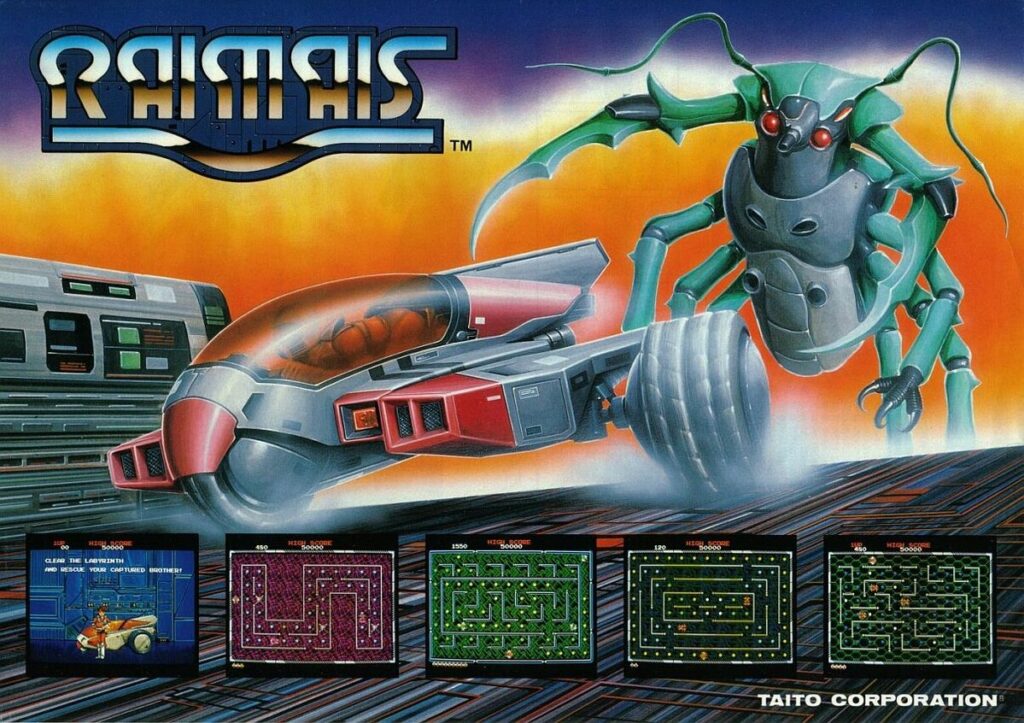
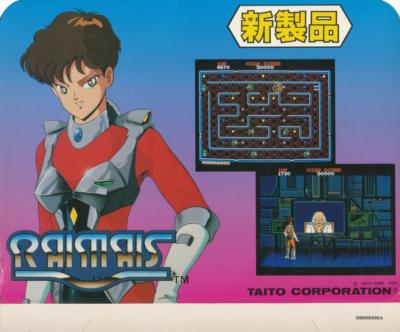
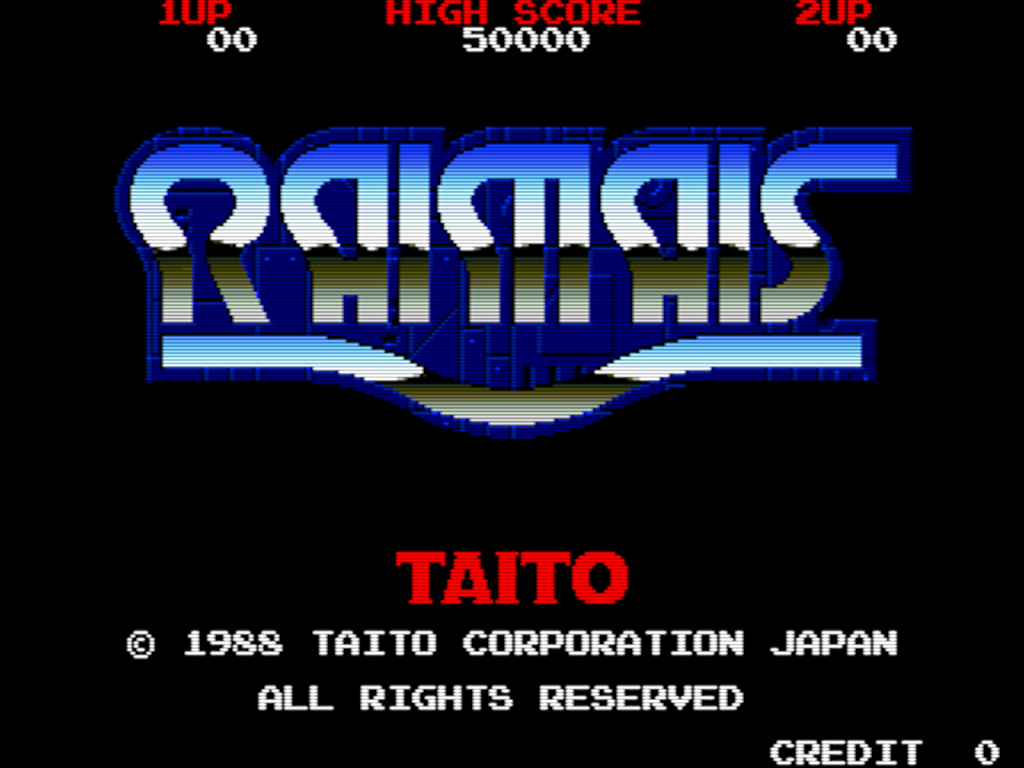
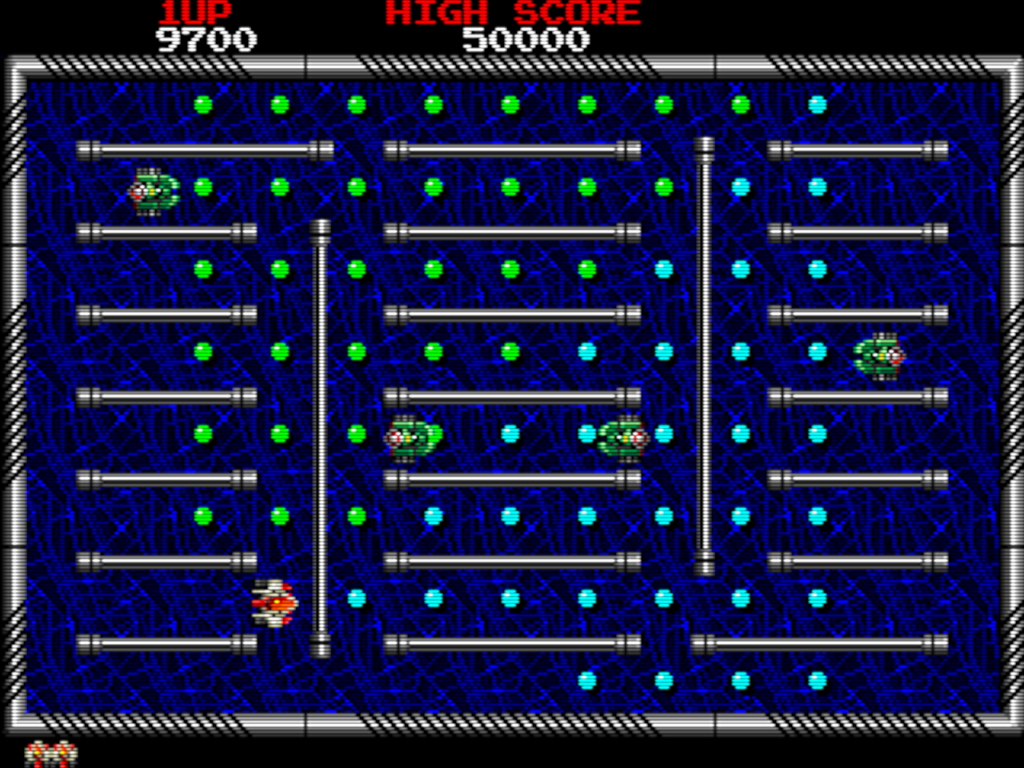
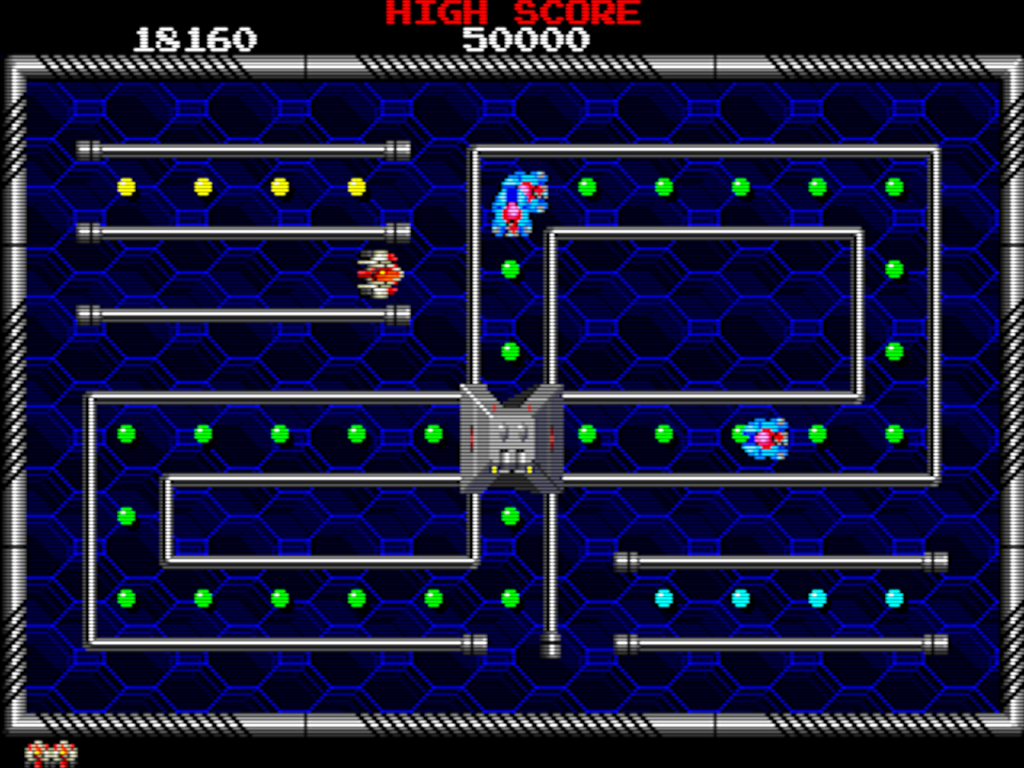
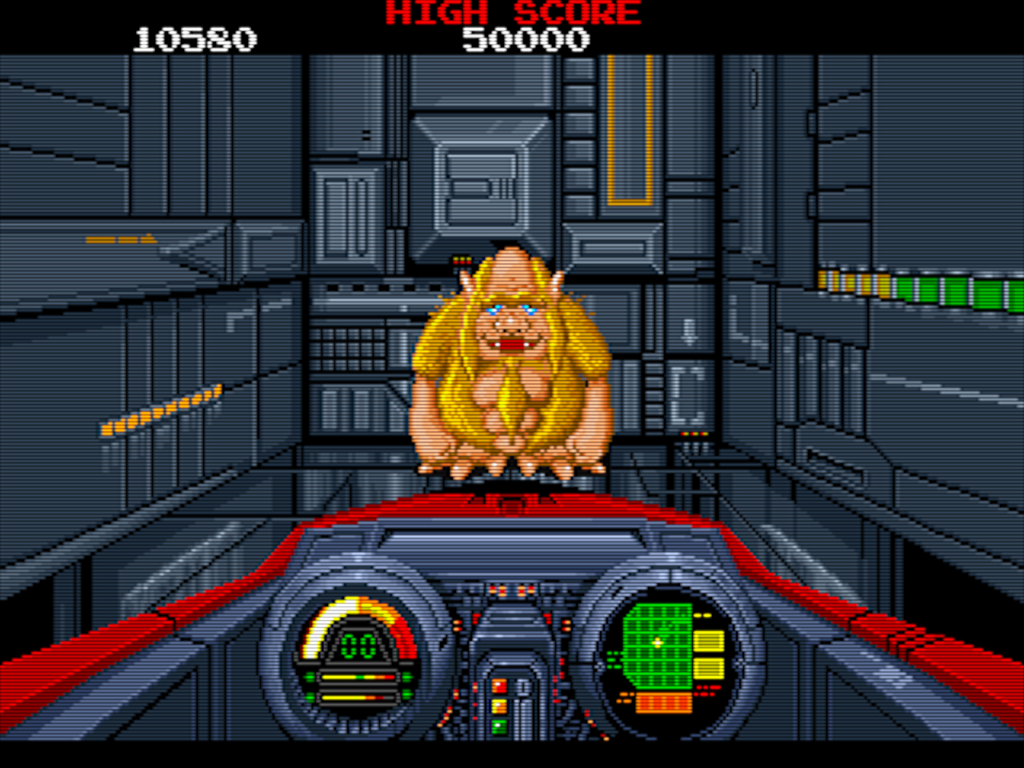
Here’s a late-’80s Taito arcade game I stumbled upon while browsing Final Burn Alpha titles. I guess I could describe it as a cross between Pac-Man and Rally-X, yet with a Taito aesthetic. Navigate the maze to collect the dots while avoiding enemies. You can collect power-ups like one to slow down the enemies, one that will kill one enemy as soon as it touches you, or a laser (similar to Arkanoid). When you clear a screen, several exits open up and the next level will be different depending on which exit you take. Give it a shot or else you suck.
According to Wikipedia, it was released as Youmais for the Famicom Disk System.
My friend Ryan built me a Raspberry Pi 5 with 16gb of RAM last year. He sent it to my dad’s home and I acquired it there when I visited in August. I had been using my Pi 4 (4gb of RAM) as a portable desktop. Once I installed Raspberry OS on my Pi 5, it blew me away how quickly it loads! It is very nice to use.
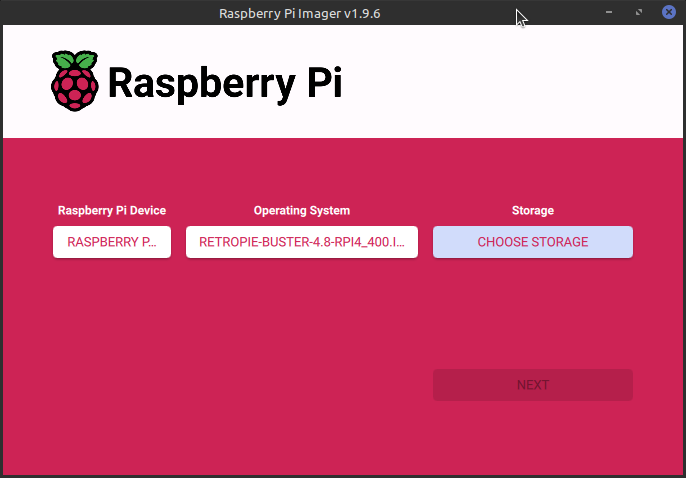
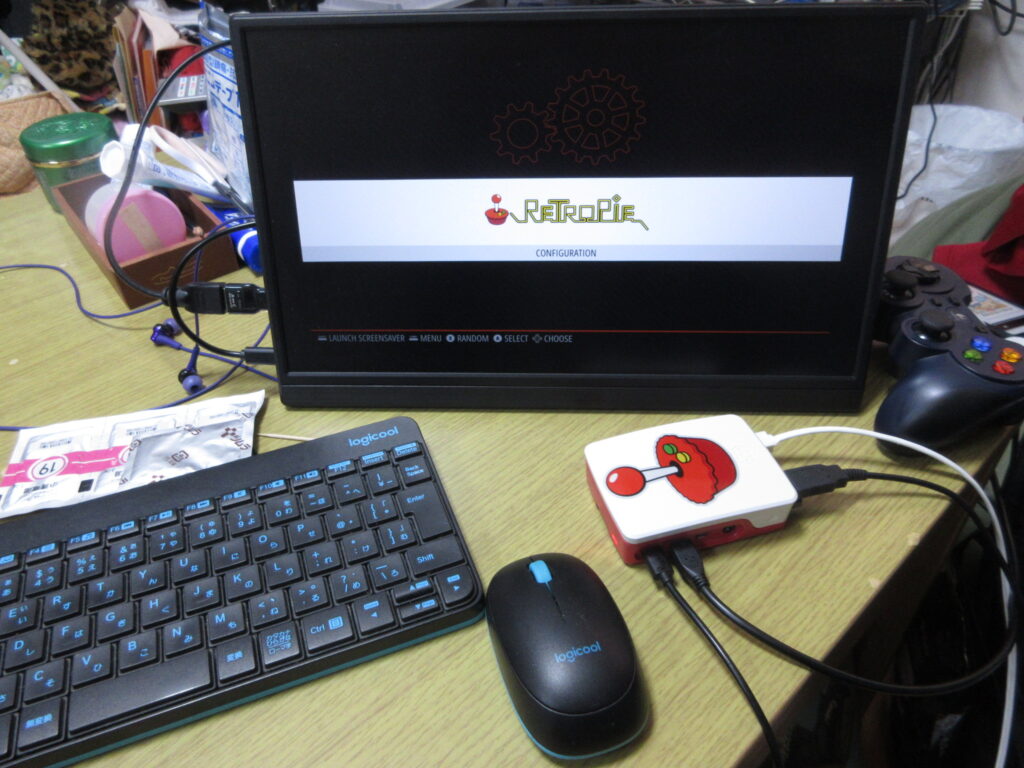
Since I no longer need to use my Pi 4 as a portable desktop, I decided to turn it into a dedicated RetroPie unit. I haven’t had a dedicated RetroPie since I sent my Pi 3 to my friend Gary.
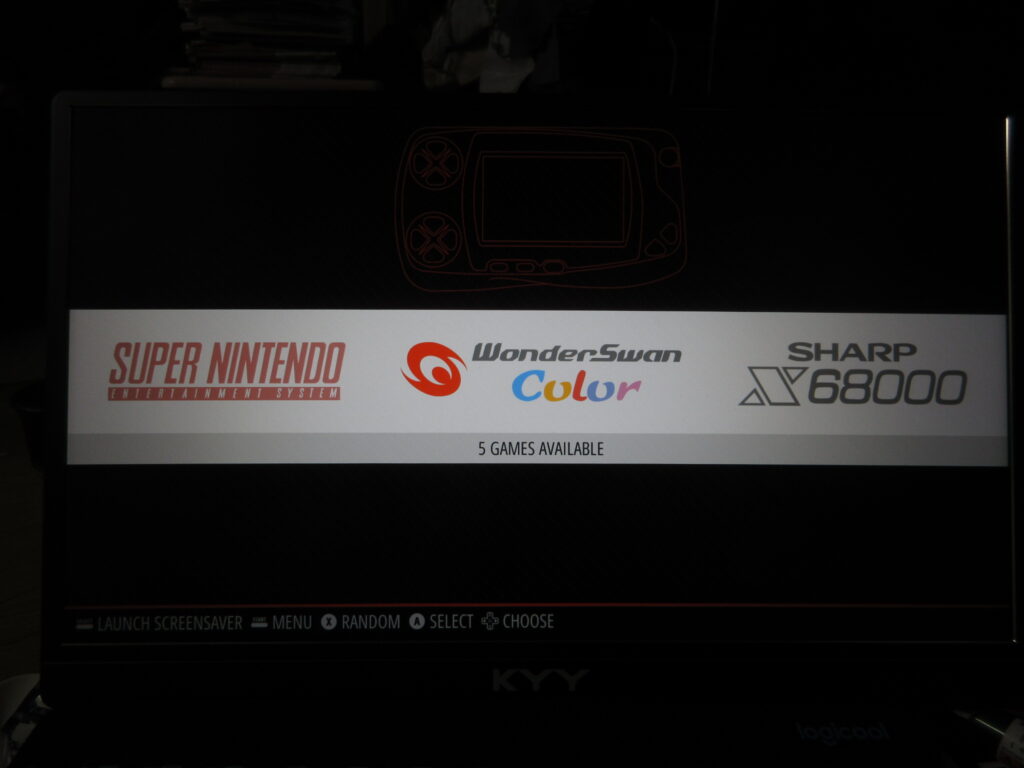
So here it is after it booted up, before any roms were added. I had to install emulators, BIOS files, the config files, and the downloaded images of the games’ covers and such. The Saturn emulator for RetroPie on a Raspberry Pi isn’t worth using. The ARM architecture cannot handle it, while the x86 architecture of my desktop can run a RetroPie Saturn emulator just fine.
At first I figured that a 32mb SD card would be enough space to install everything I wanted, but considering that I have several CD-based games for the Turbo Duo and Mega CD, I was not able to copy over all the games I wanted to. I went to Yamada Denki and bought a 128gb SD card and started over.
It’s not enough to just install the emulators and copy the roms over to their respective folders. The Retroarch controller config files as well as the game lists and game photos from the game data scrapers should also be copied to the RasPi’s new SD card. Here’s a list of what I made sure I copied over to the SD card:
home/RetroPie/BIOS -> Where any necessary BIOS files go, of course.
home/RetroPie/roms -> The actual games, duh.
opt/retropie/configs/all/emulationstation/downloaded_images -> When you scrape the games’ covers and such, this is where those images are stored for each console.
opt/retropie/configs/all/emulationstation/gamelists -> The info you’ve scraped with the games’ descriptions. Those downloaded images don’t mean a thing without these files!
opt/retropie/configs/all/retroarch/autoconfig ->This is where your controller configuration files are stored. Of course, you could just configure your controllers from scratch, but since I had to manually edit the config file for my Mayflash Sega Saturn converter, conserving this file is a must! On a Saturn pad, the LB and RB buttons become the Z and C buttons respectively, and since there is no Select button, I had to change how the menu is loaded in-game so as not to exit the game every time I pressed the Start button!
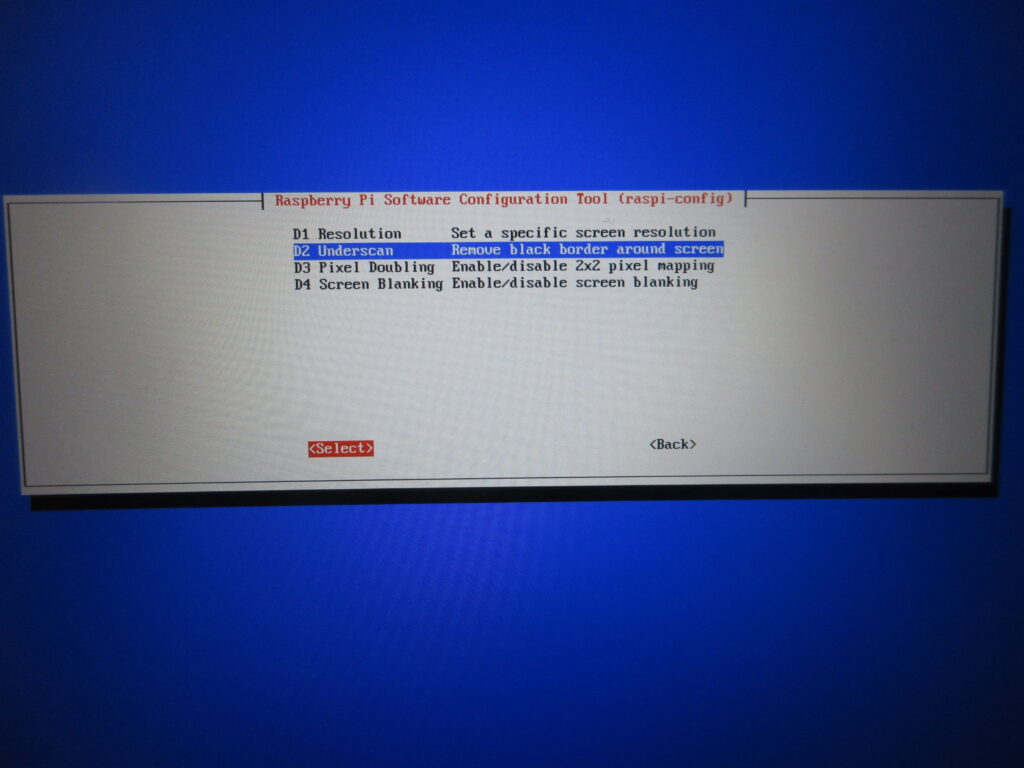
Once all those files were transferred over, it was time to test it out. I didn’t like how there was a black border on this 16:9 monitor, which made the game screens smaller. What the heck?
Here’s what I did. I set it to a resolution of 16:9 60fps and then with this “underscan” option I removed that dumb black border.
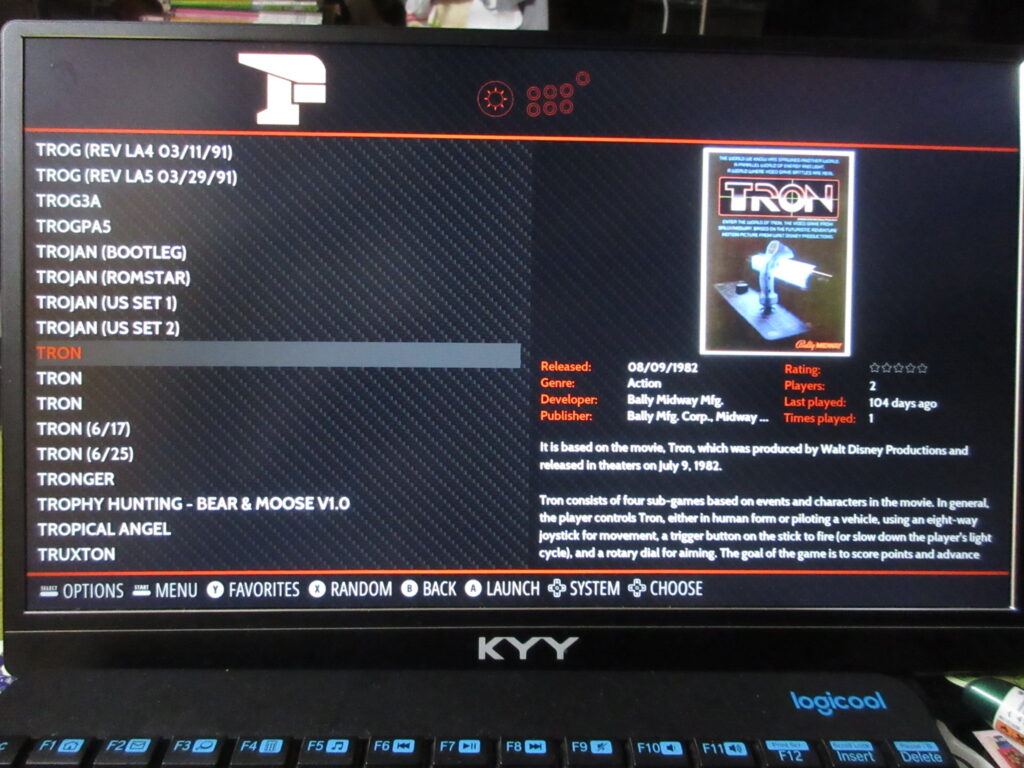
The scraped data is all there now.
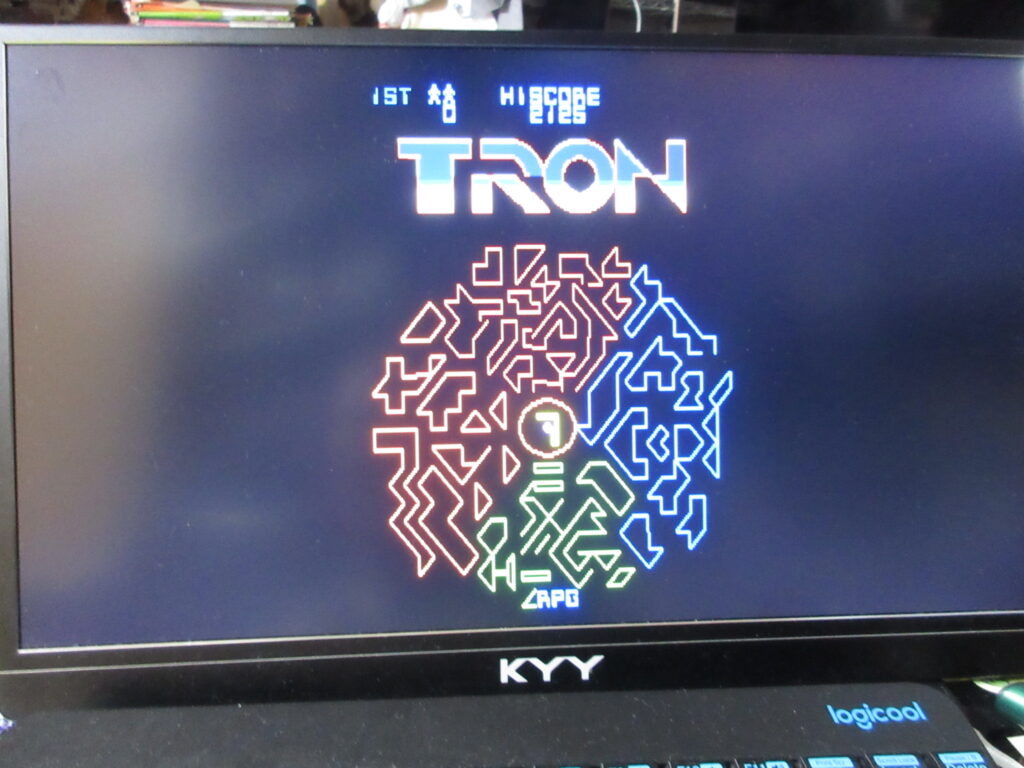
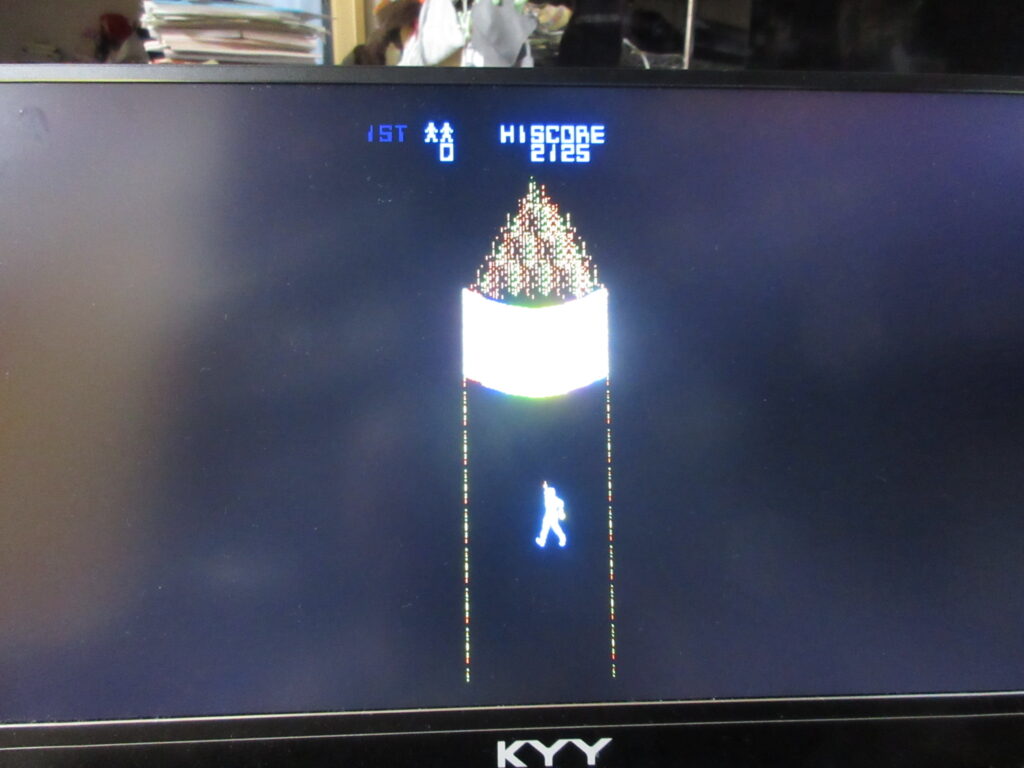
Tron. I’ll have to edit the game’s input configuration. This game is always awkward to play emulated because the arcade game had both a joystick and knob.
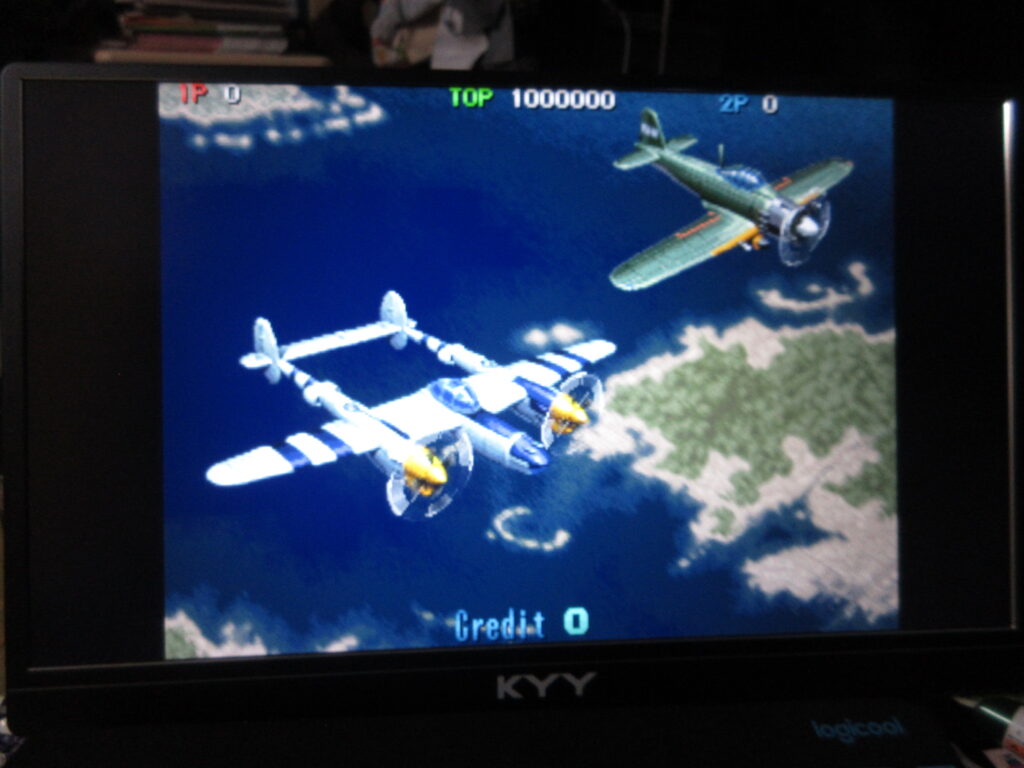
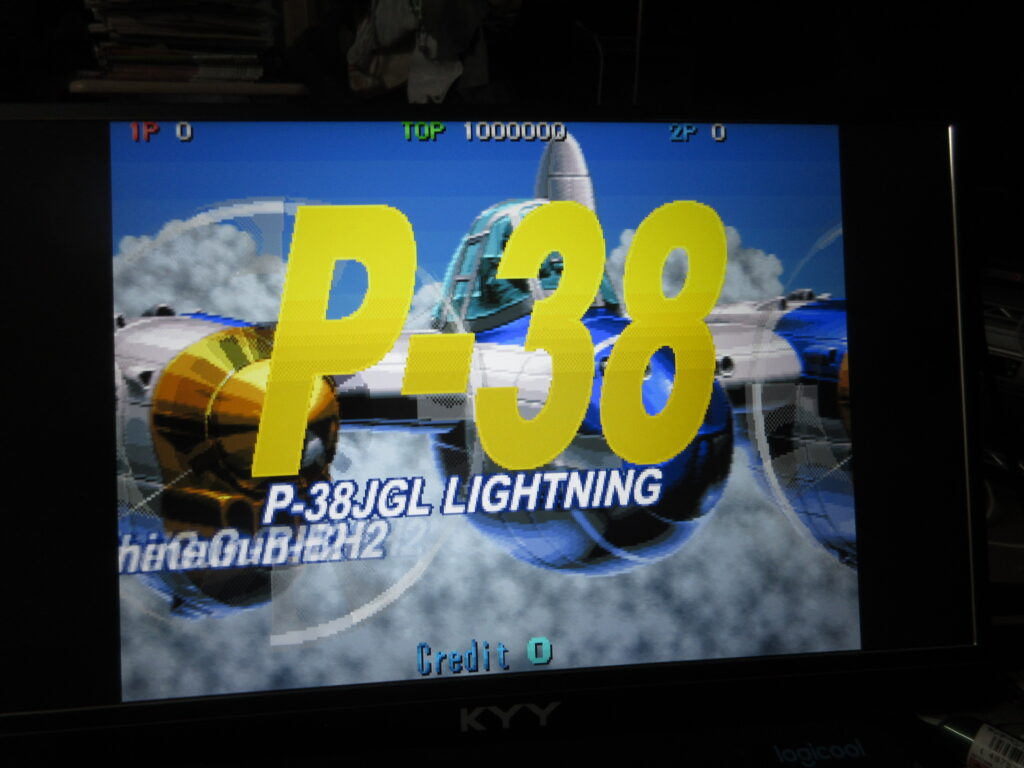
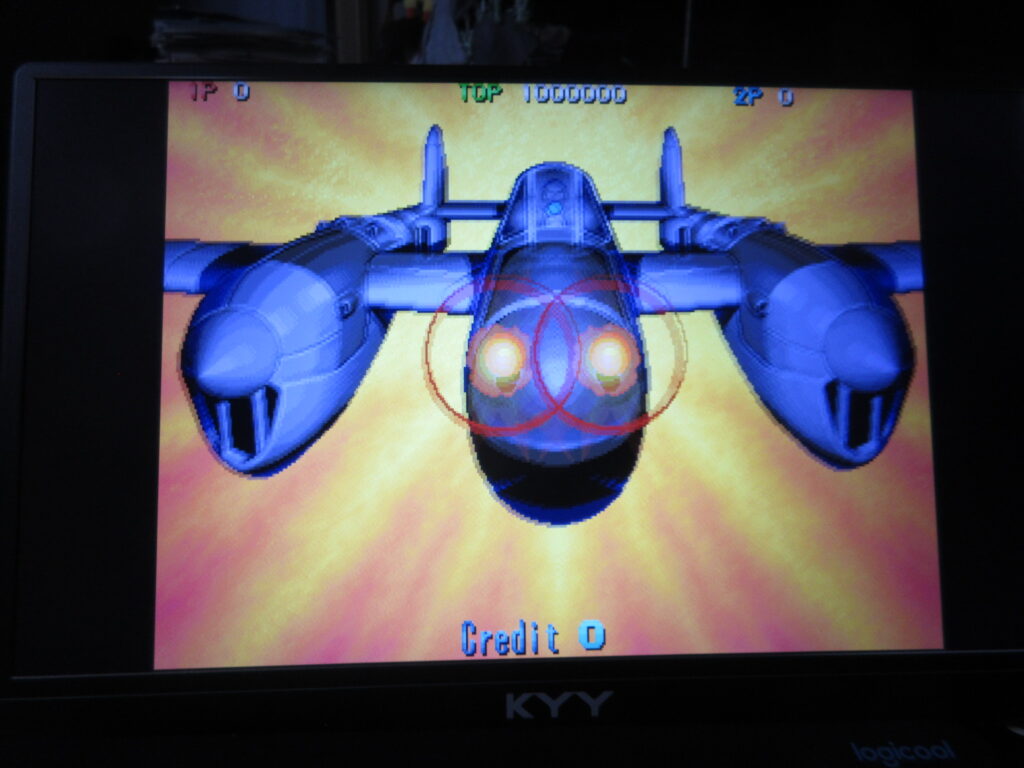
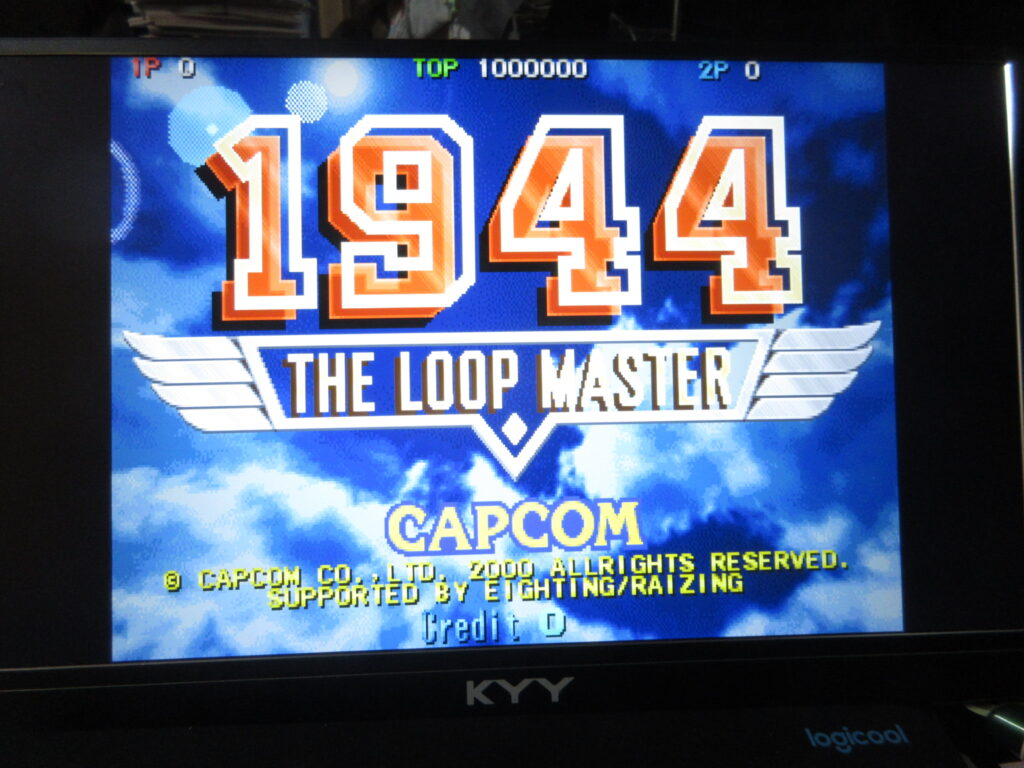
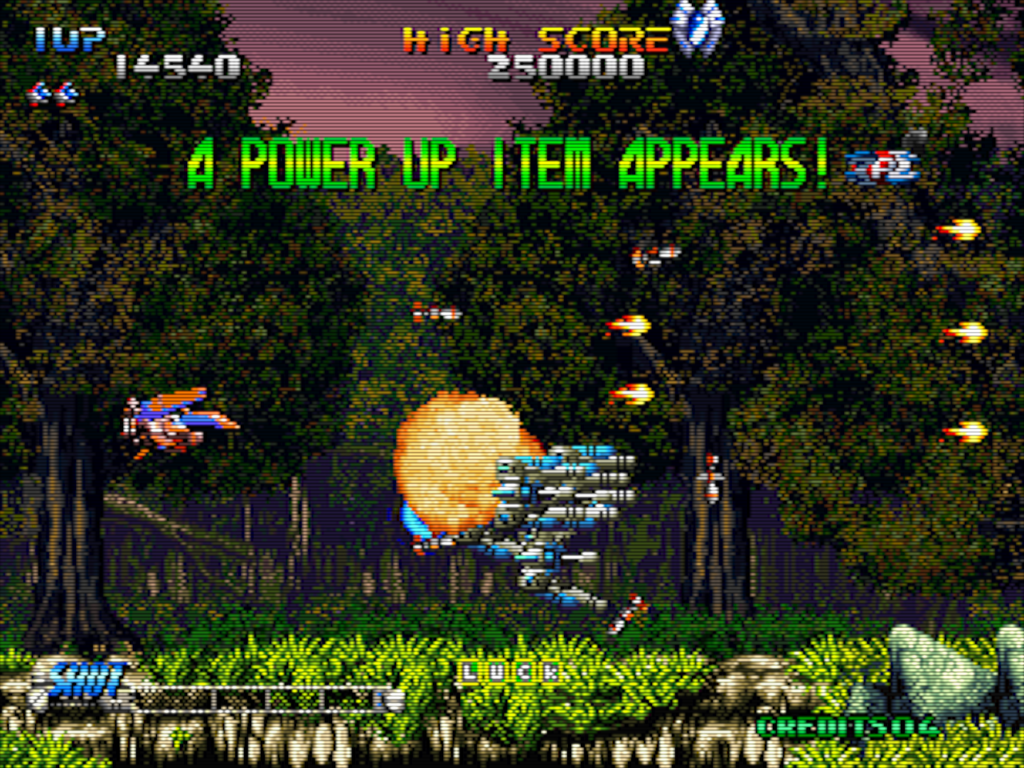
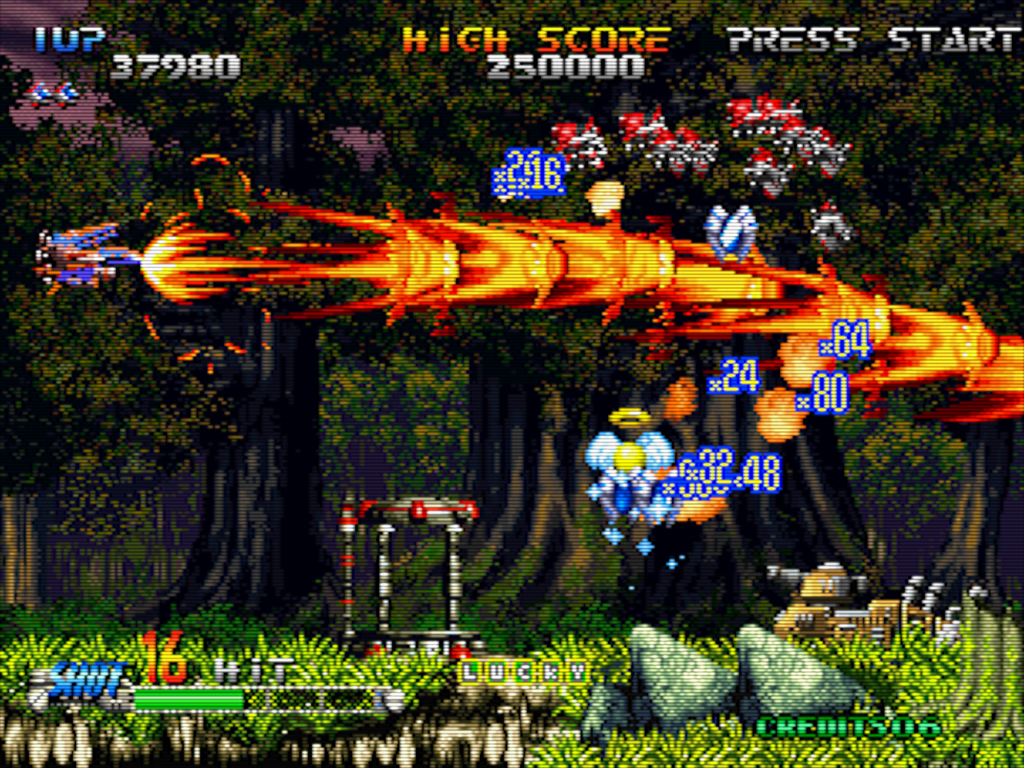
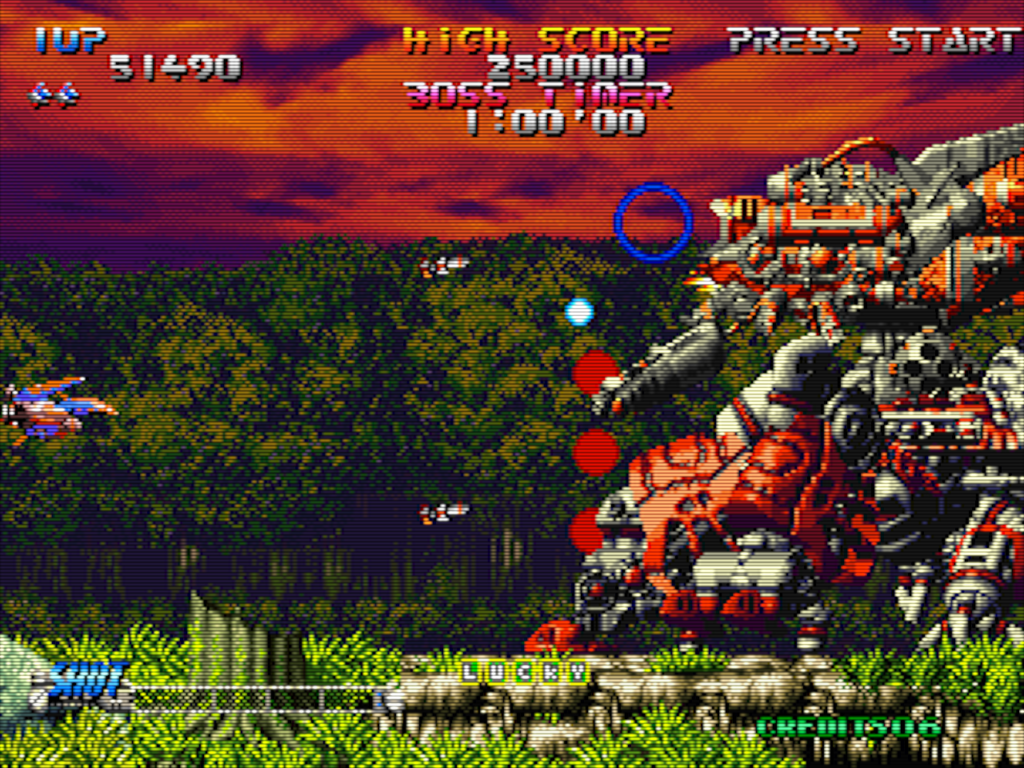
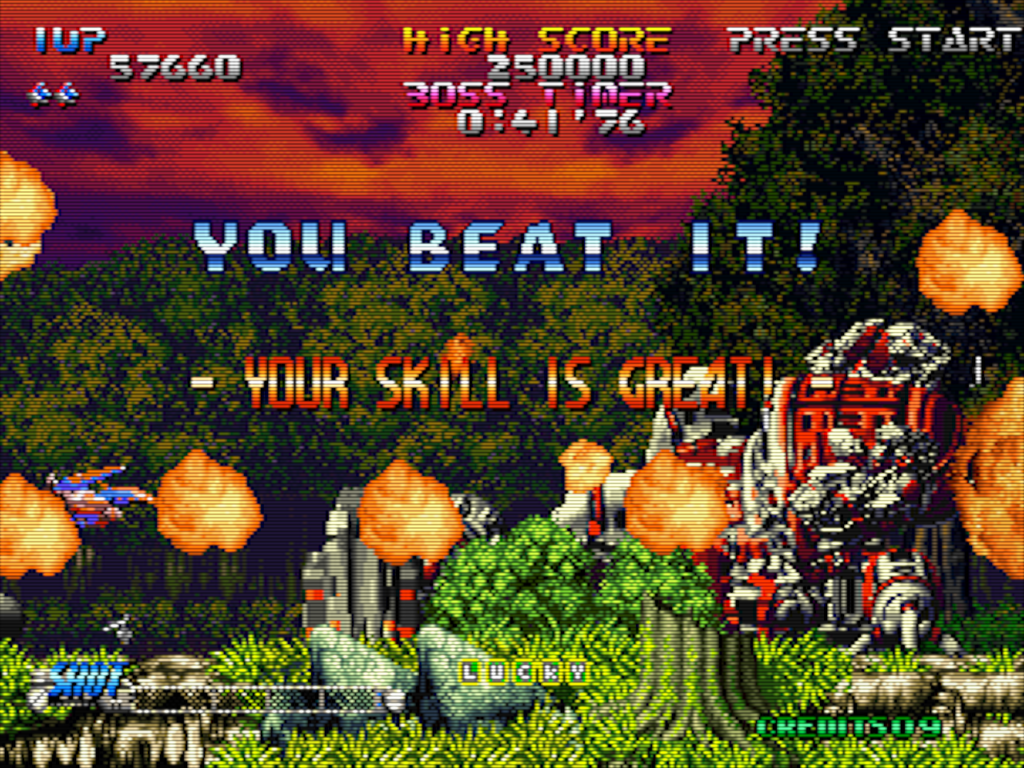
1944: The Loop Master. Once I add a CRT shader for the screen, I’ll be all set.
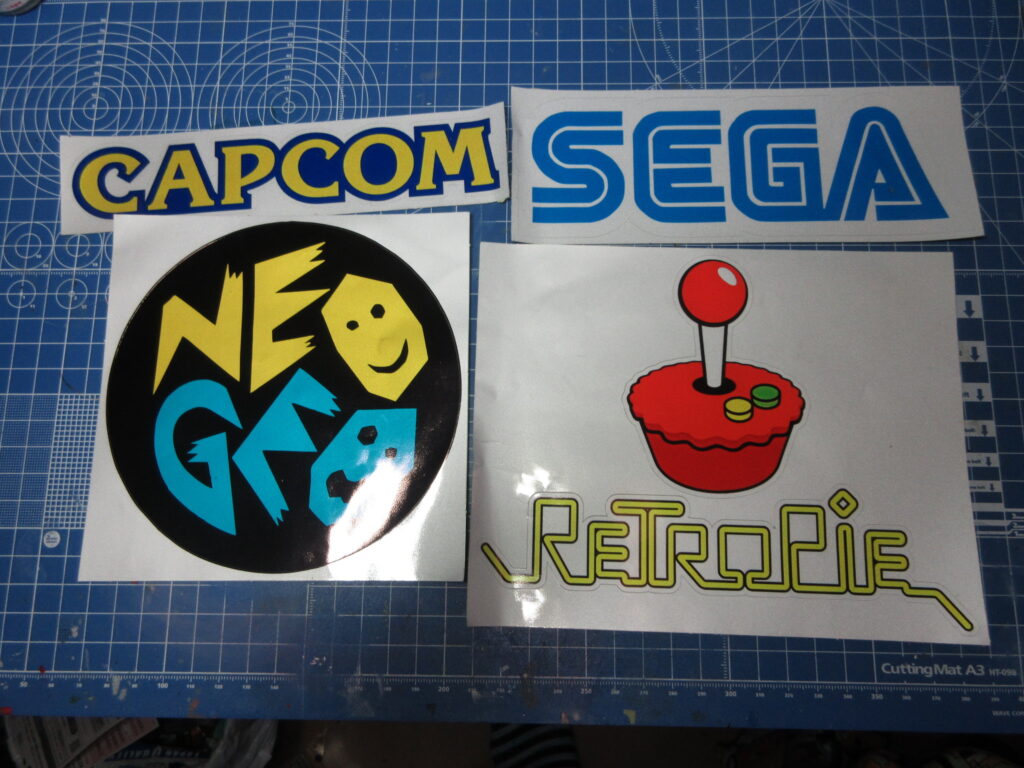
I got these on AliExpress.com. I didn’t notice the size of these stickers. I was hoping to put the RetroPie sticker on my Raspberry Pi case, but it’s way too big for it!
Here is the link to the sales page for these stickers. You have to choose which ones you want. They also have a Konami sticker, but it’s the newer logo and not the classic logo, unfortunately. So, I passed. I do want to buy a smaller RetroPie sticker now.
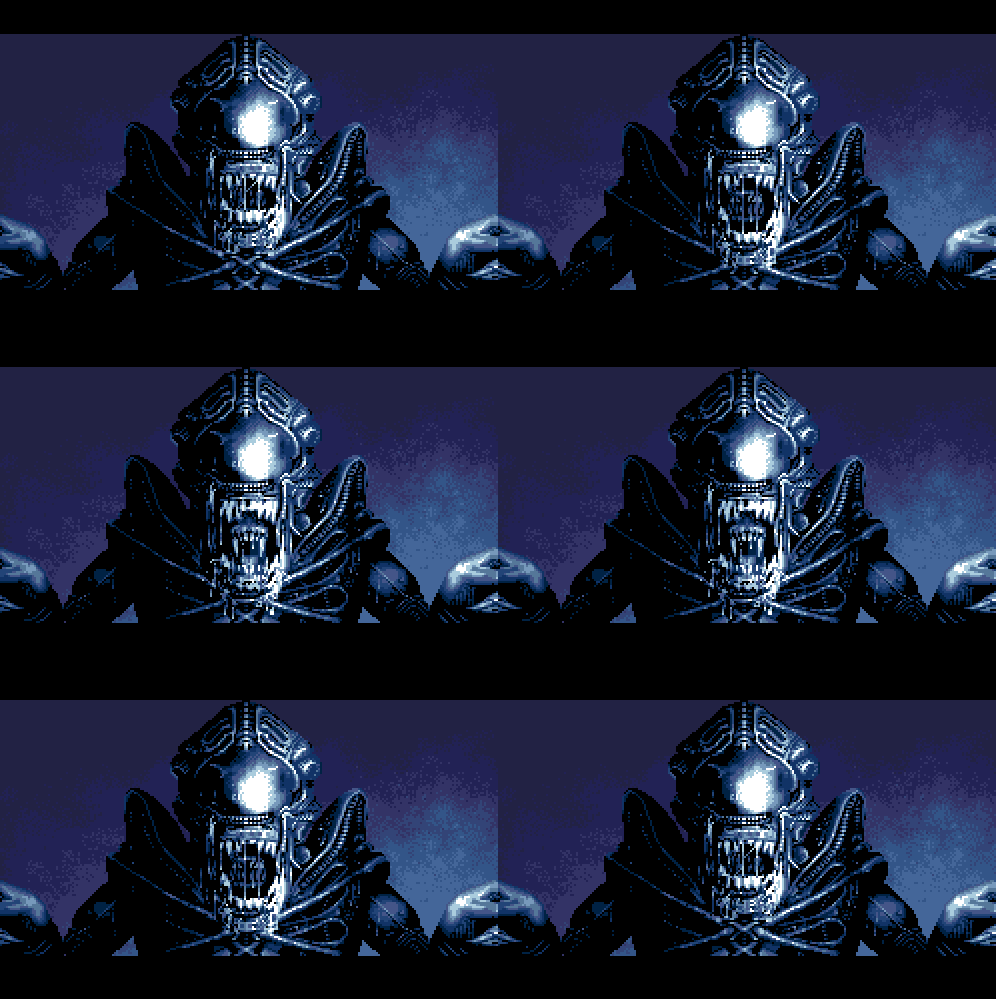
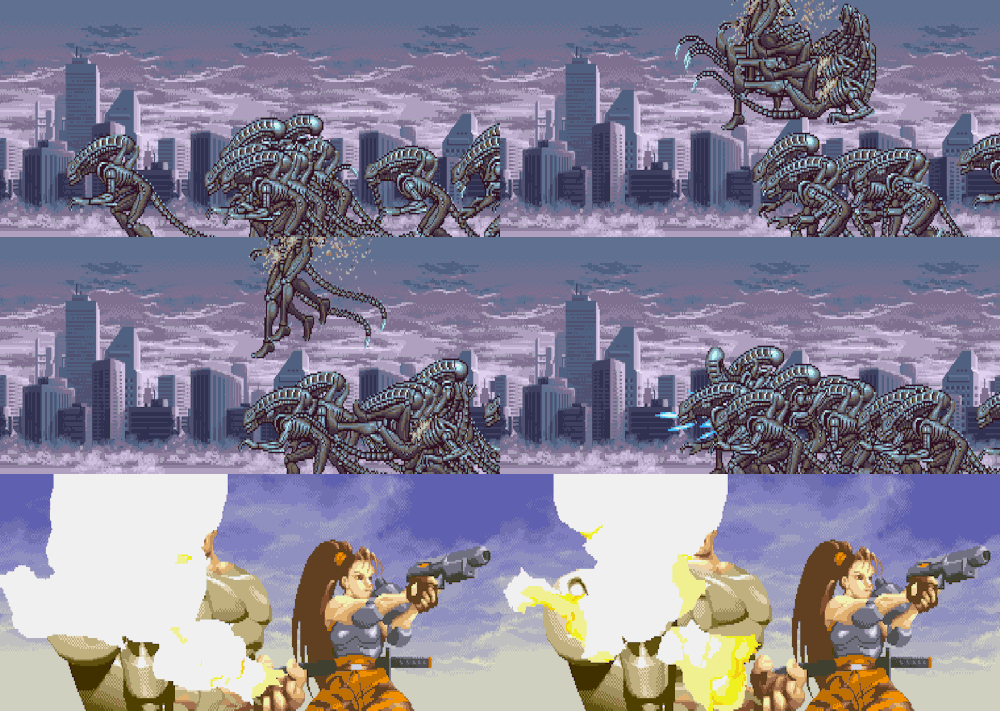
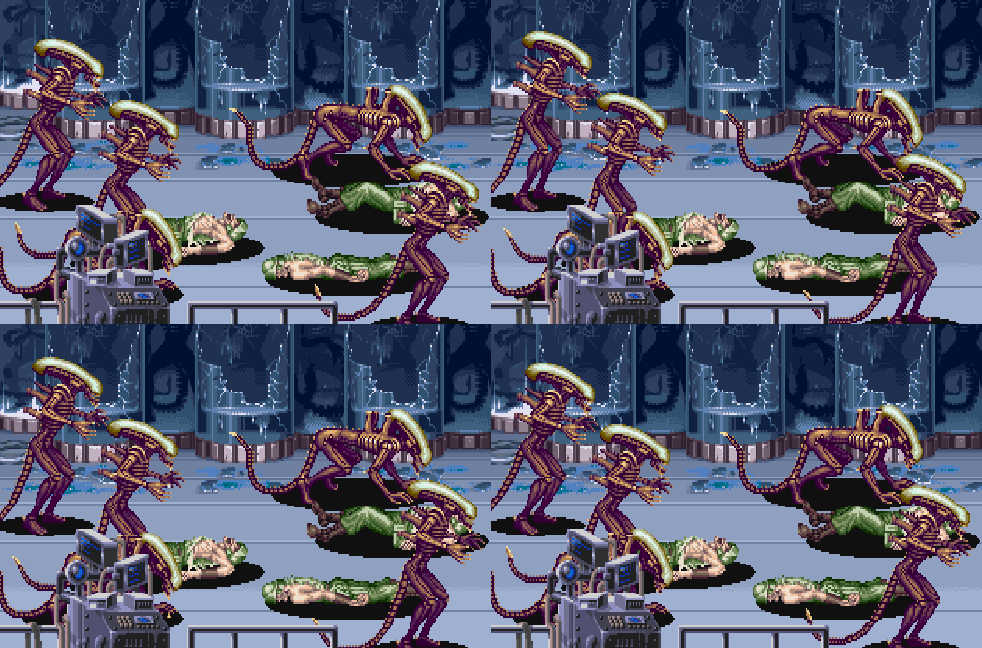
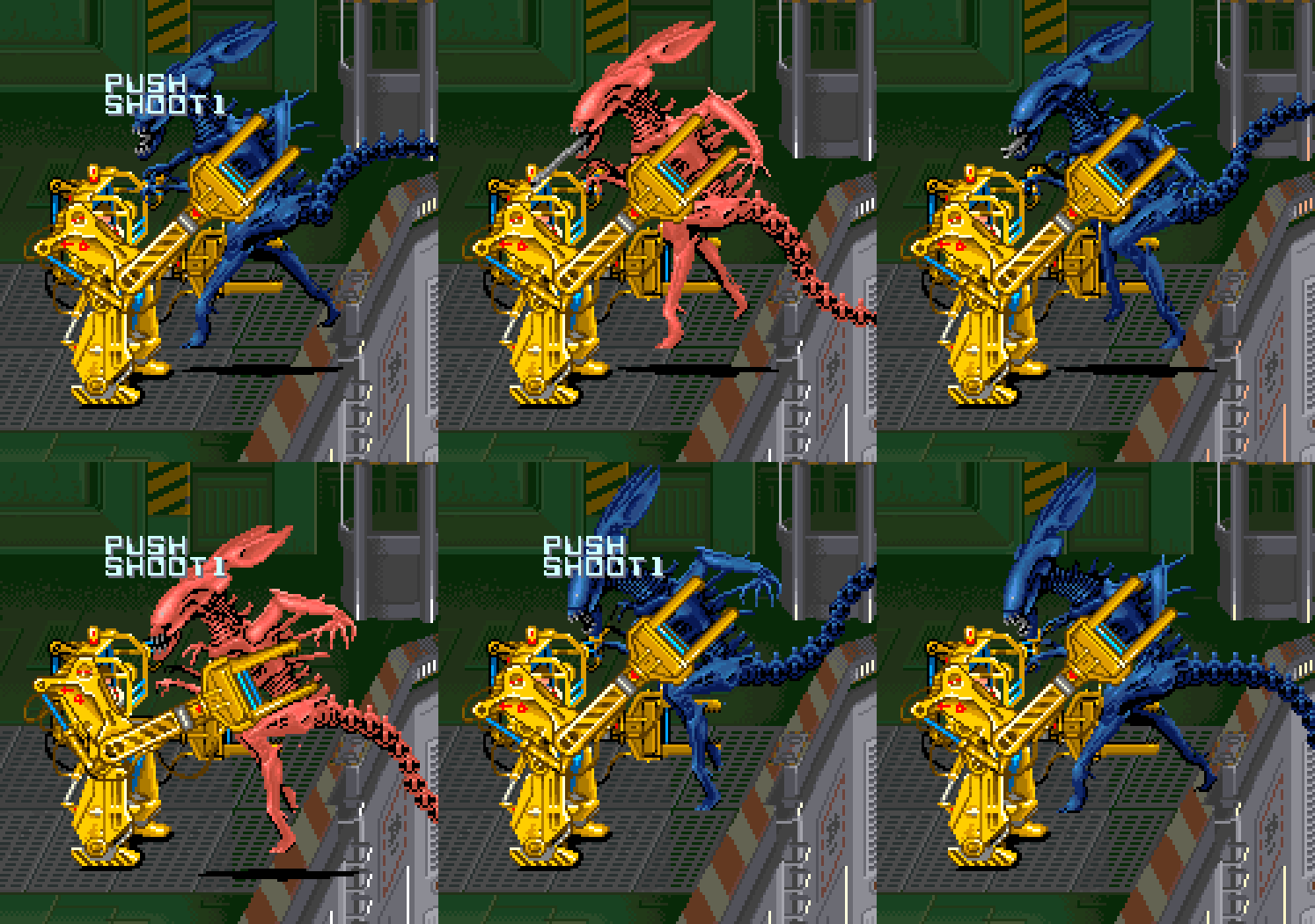
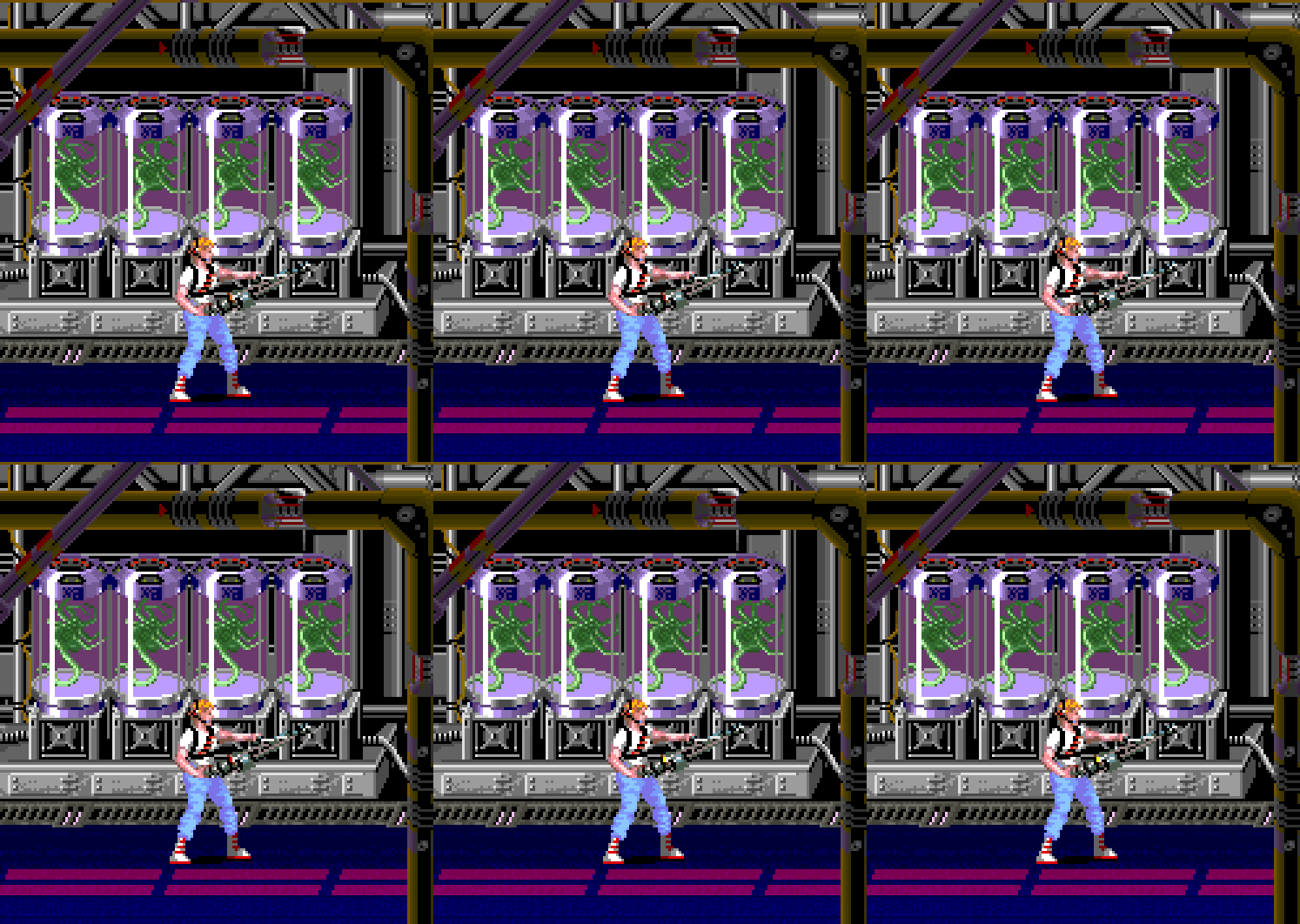
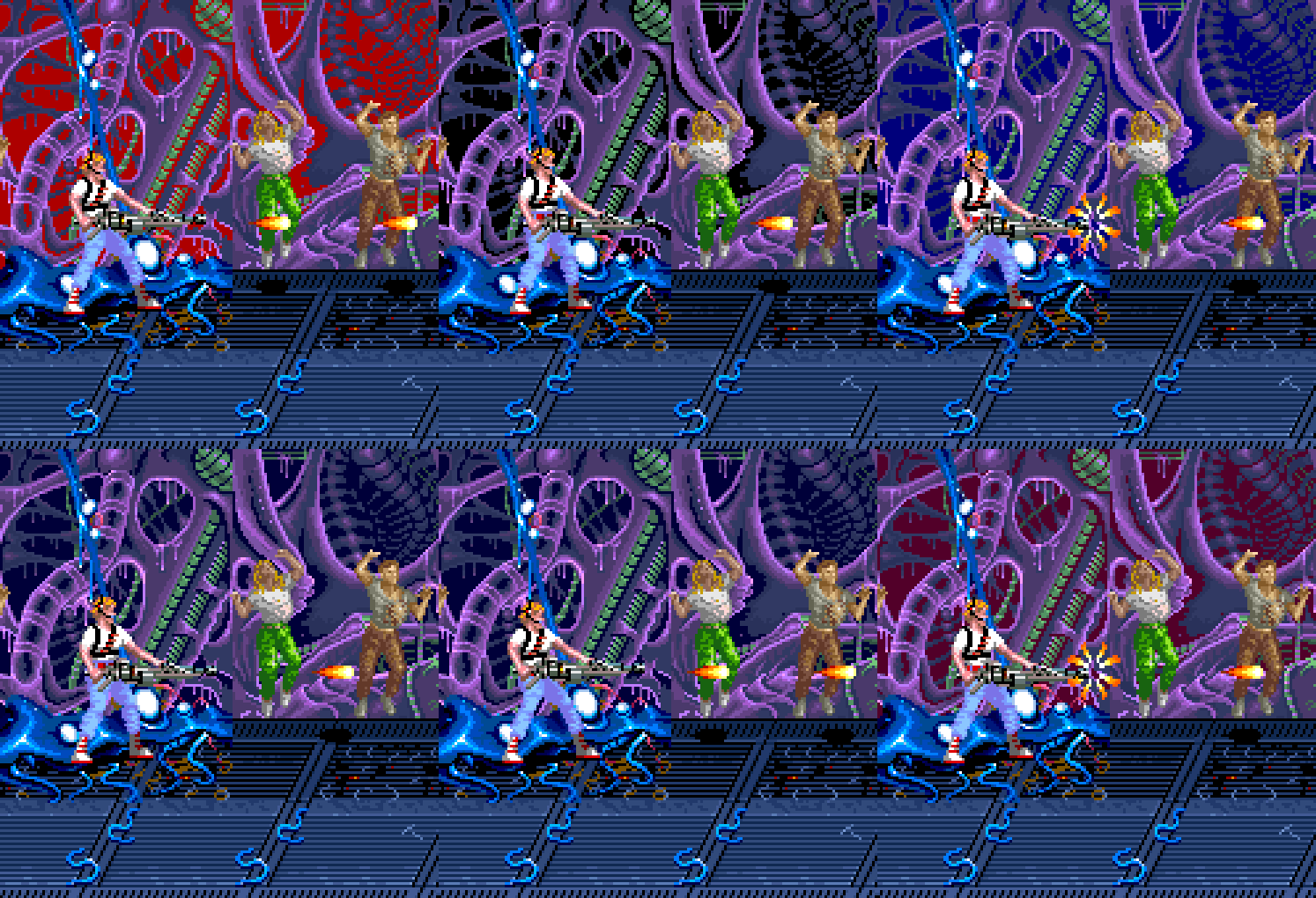
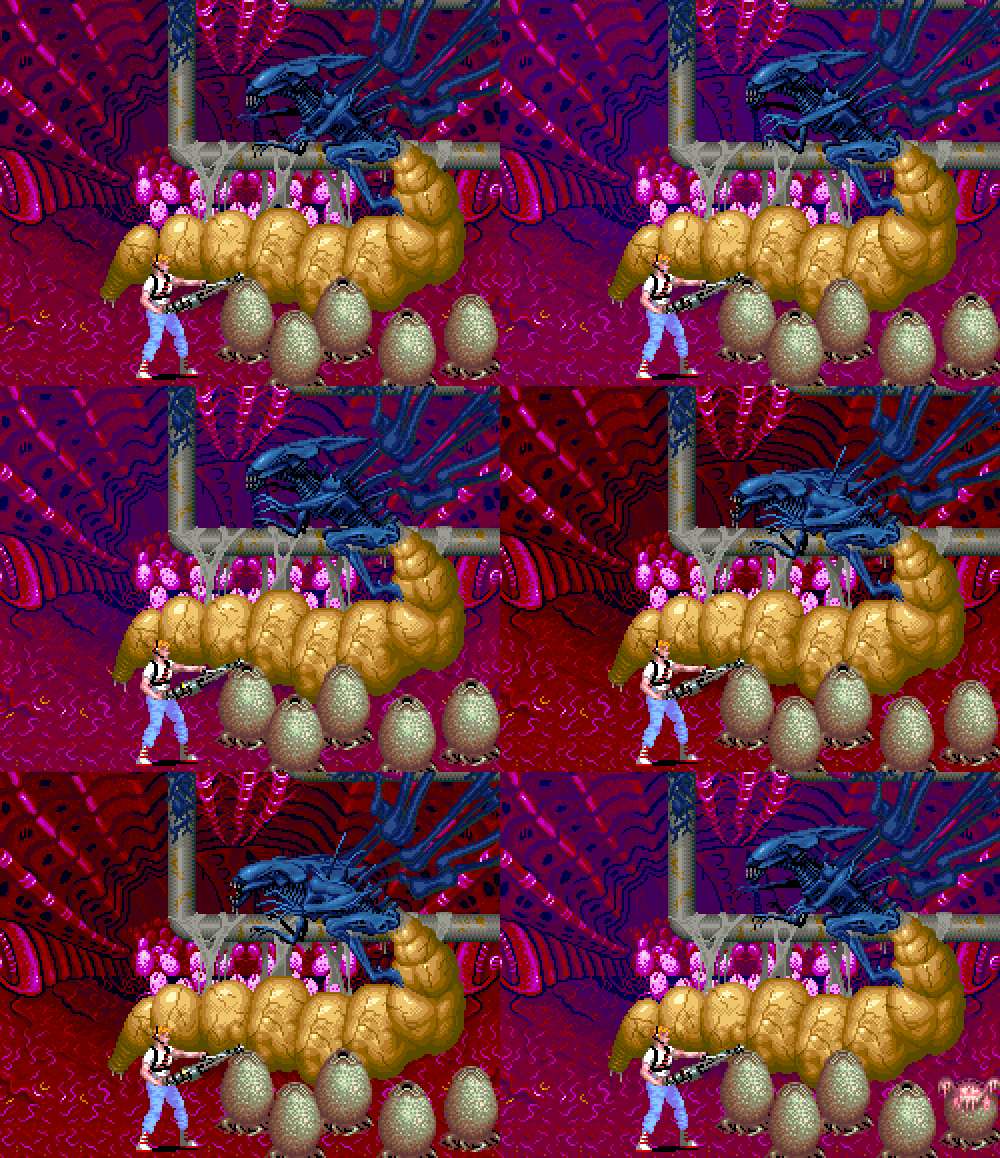
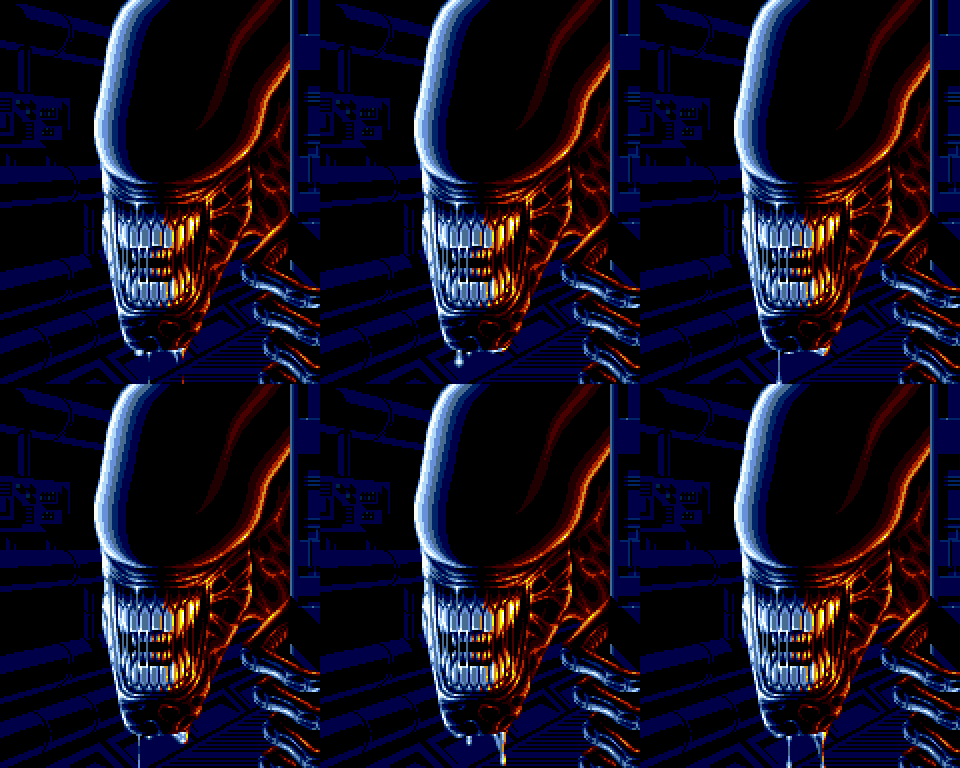
I found these on Pinterest. I always preferred Capcom’s Aliens vs. Predator arcade game over Konami’s Aliens game. I played the Konami game in the arcades on occasion, but it never impressed me much. I’ve lately come to appreciate it more recently via Final Burn Alpha on RetroPie.
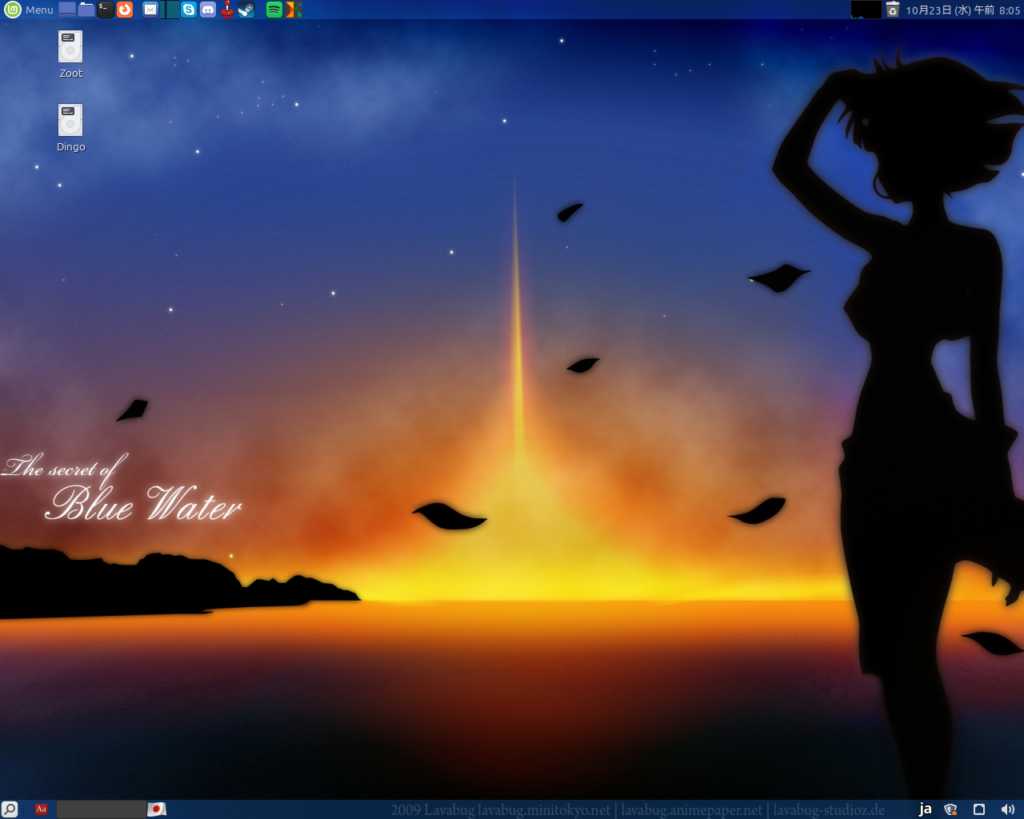
Here is my newest desktop wallpaper, and it’s Nadia with a beautiful sunset. I was running Mint Mate 20 Ulyssa, and my 1TB SSD hard disk was maxing out. In august I bought a 2TB HD, and in September I installed Mint Mate 22 Wilma. It wasn’t a smooth experience like version 20 was. The first problem I had was when I plugged the old 1TB drive in and tried copying my files directly from there. Upon reboot, it wouldn’t even boot up and was scrolling text. I re-installed Wilma. Then updating the Nvidia driver caused the computer to freeze up. I had to get help on the Linux Mint Forums and learned how to modify the boot kernel. After that, it was fine. However what remains is apparently the USB device manager might not function properly.
I’ve done three fresh installs of Retropie on Linux Mint Mate 22 and each time the controller input is screwed up. I am using a Logitech F310 USB gamepad, which is pretty standard. Retropie on Mint 22 is flawed. Controller problems.
When accessing the in-game menu by pressing the hot key (to take a screenshot, save state, etc), the joypad locks up. I have to press select for it to work again. When returning to the game, the joypad is again locked up and I cannot play the game. I must press select again to regain control.
When accessing Retropie-Setup from within the RetroPie GUI, joypad input ceases to work. Not even the arrow keys can be used. The workaround for this is to run the setup.sh via terminal and the controller works. (Open the Terminal in the RetroPie-Setup folder and type sudo ./retropie_setup.sh to run it.) Just not when accessed through RetroPie itself.
For this third time, I did not copy over any config files and I did the controller setup for my joypad from scratch. I thought perhaps that there might have been a problem by just copying the entirety of the ./opt/retropie folder and all of its subfolders, but this is not the case. I did a full uninstall, then a reinstall. The problem remains.
I am wondering if it is a problem with Mint 22 itself. I had zero problems installing and using RetroPie on Mint 19 and 20. However, with Mint 22 I’ve noticed that at least with Space Invaders Extreme on Steam, the game does not recognize my controller at all, regardless of which version of the Linux Proton compatibility tool I am using.
I’ve been advocating people switching to Linux for years now, but this latest version is making me hesitant. My experiences with installing Mint 19 Tricia and Mint 20 Ulyssa were smooth, but Mint 22 Wilma has given me some headaches. Posting my problems online, I was told by others who are disappointed with 22 Wilma’s USB capabilities. One guy said he has some external hard drives that 22 won’t recognize. Another said that his Logitech wireless keyboard and mouse combo is wonky, and replacing this with a generic wireless set did not solve the problem. I do hope that these issues will be addressed soon. I would not have known what to do with my Nvidia driver without the help of the Mint forum. I was told that my GPU is old, but it’s from 2017 so it can’t be that old.
For now, Steam is fine, more or less. Retropie is fine until I have to bring up the menu. Having to press the select button though, it makes me hesitant to plug in my Saturn controllers, since they do not have a select button.
EDIT 10/27: I ran an update over the weekend and the first issue with RetroPie freezing after calling up the menu is now fixed.
You may need to click each image to see the images in a larger scale to truly see the effect, since WordPress tends to shrink images to fit.
For scanlines/shaders, you’ve gotta go into RetroPie Setup. From there, Configuration/Tools -> Config Edit -> Config Basic libretro emulator options. Now here you can choose to apply the shader to ALL of the emulators (option 0) or do it for individual emulators. I’m using Final Burn Alpha, so I went to Configure additional options for fba. Option 3 is Video shader enable (3). Click that and enable “True.” Next is Video shader file (4). I chose crt/crt-hyllian.glslp . You can choose it with the glow (crt/crt-hyllian-glow.glslp) to add that aged CRT look. I think there are others that will mimic a curved monitor’s surface. Tinker around and see what you like.