

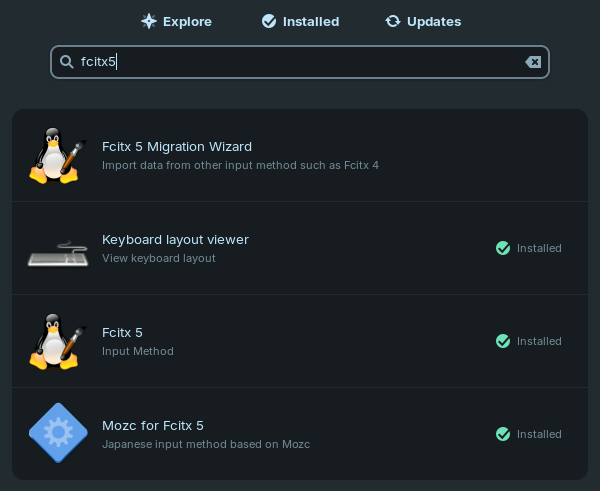
In order to configure your Linux computer to input Japanese text, you will need two programs: Fcitx5 and Mozc. Fcitx5 is the program which enables non-Roman language input and Mozc is what Fcitx5 uses to input Japanese. After installing these programs through either the software installer or package installer, you should see a keyboard icon appear on your panel. If not, a reboot may be required. I’m going to show you how to do this in Zorin OS. From my experience, this is pretty much the same in both Mint and Raspberry OS, so I imagine it’s the same for other Linux distributions. Don’t worry about the Fcitx5 Migration Wizard. That’s only for if you are migrating from version 4 to version 5. After installing these programs, this is what my Software installer shows:
You will need to configure Fcitx5. Click on the keyboard icon (or it could be the letter A?) and select “Input method settings.” This is generally what you should see with the first tab, “Input Method”:
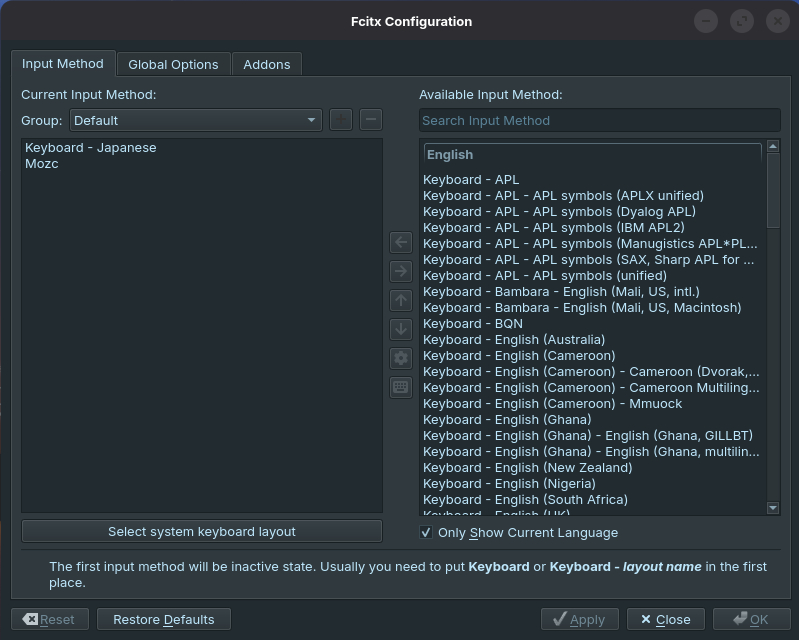
For input method, you will need to have “Keyboard” (here mine is a Japanese keyboard) as well as Mozc. Toggling between these two is what you need to do next. Click on the “Global Options” tab.
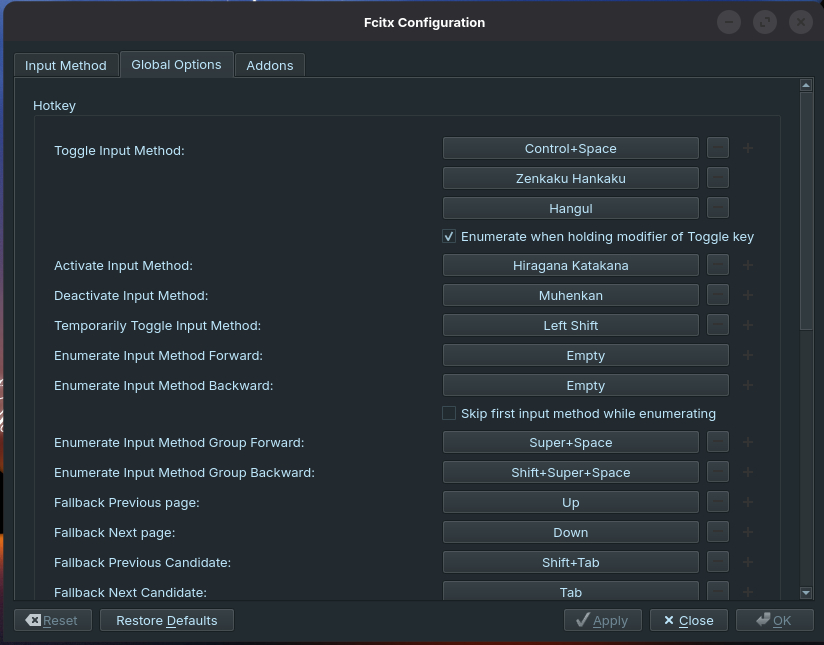
Here you can change the toggle input method. You can make it CTRL + ~ or CTRL + (spacebar). What you do is click the input method and then press the sequence you wish to use. Since a Japanese keyboard already has a button for this (hankaku/zenkaku), I made this available. You can always change the input method by clicking on the orange あ icon (Mozc) and then select “Mozc settings” (to select between full katakana, half katakana, and so on).
Look at the Mozc Settings. In Zorin, it’s under System Tools from your main menu.
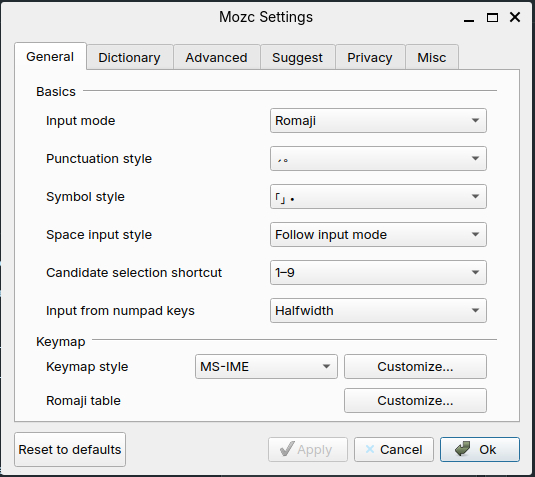
Make sure that the input method is set to Romaji. This means that you will press the S key and then the A key to give you さ and so on. Otherwise, it’ll think you have a Japanese style keyboard and I don’t think even Japanese people know how to use a Japanese keyboard. Keymap style should be set to “MS-IME.” So you really don’t have to change anything here. However, through the Mozc Settings you can add certain words to dictionaries and save them. This is useful for more obscure kanji readings for proper names and such.