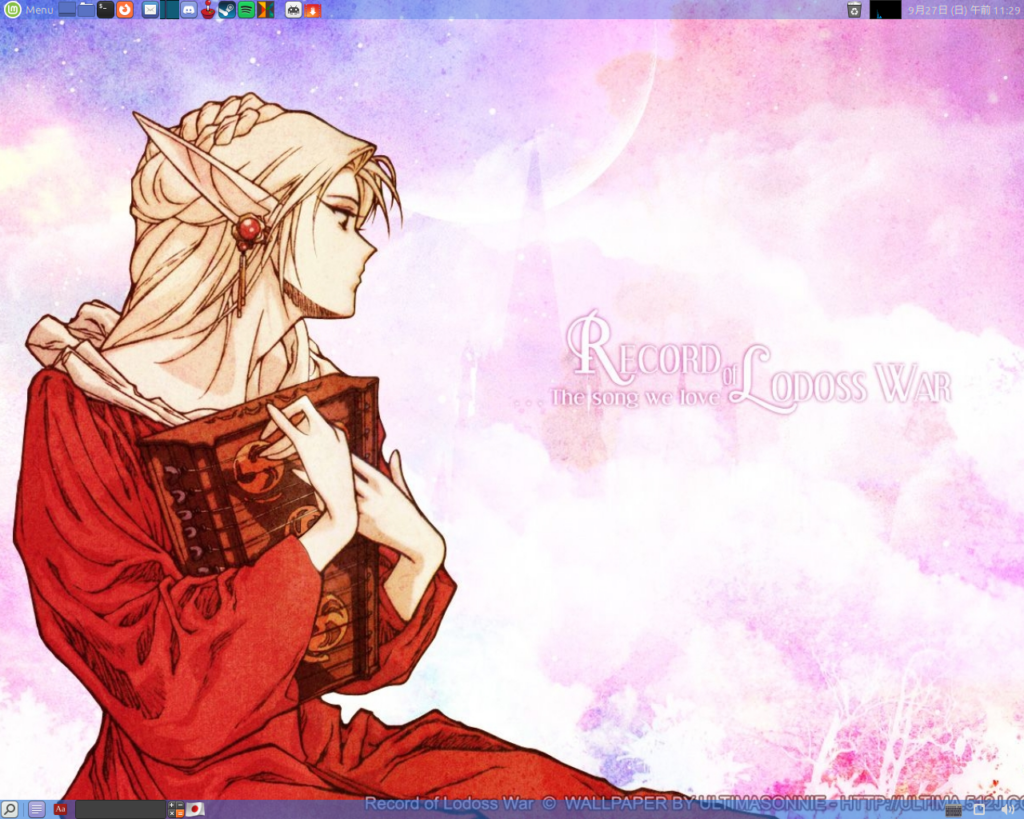
Deedlit from Record of Lodoss War on my Mint Mate desktop.
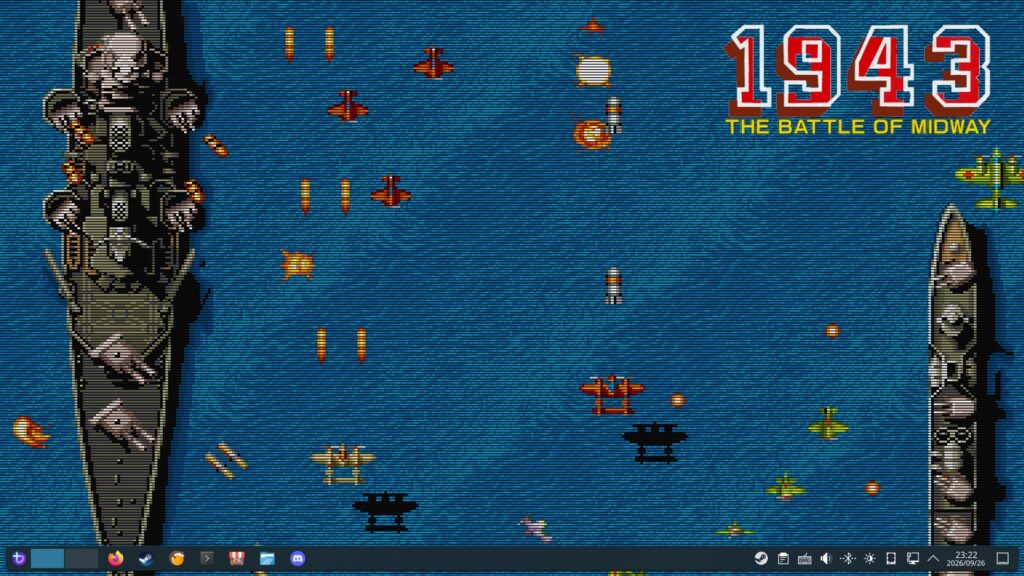
1943 wallpaper for my Bazzite Steam computer. I had Shantae in a bikini over the summer but now that summer is over, I’ve moved onto this wallpaper. I love the scanlines. I’ve been playing a lot of 1943 actually on Capcom Arcade Stadium volume 1 on Steam.
My friend Ryan built me a Raspberry Pi 5 with 16gb of RAM last year. He sent it to my dad’s home and I acquired it there when I visited in August. I had been using my Pi 4 (4gb of RAM) as a portable desktop. Once I installed Raspberry OS on my Pi 5, it blew me away how quickly it loads! It is very nice to use.
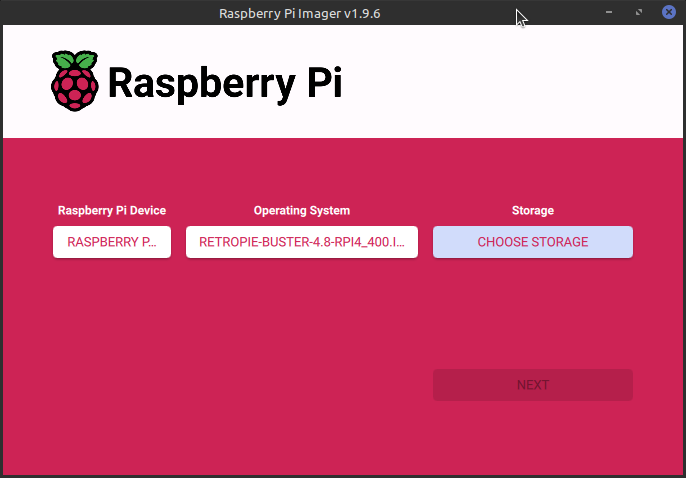
Since I no longer need to use my Pi 4 as a portable desktop, I decided to turn it into a dedicated RetroPie unit. I haven’t had a dedicated RetroPie since I sent my Pi 3 to my friend Gary.
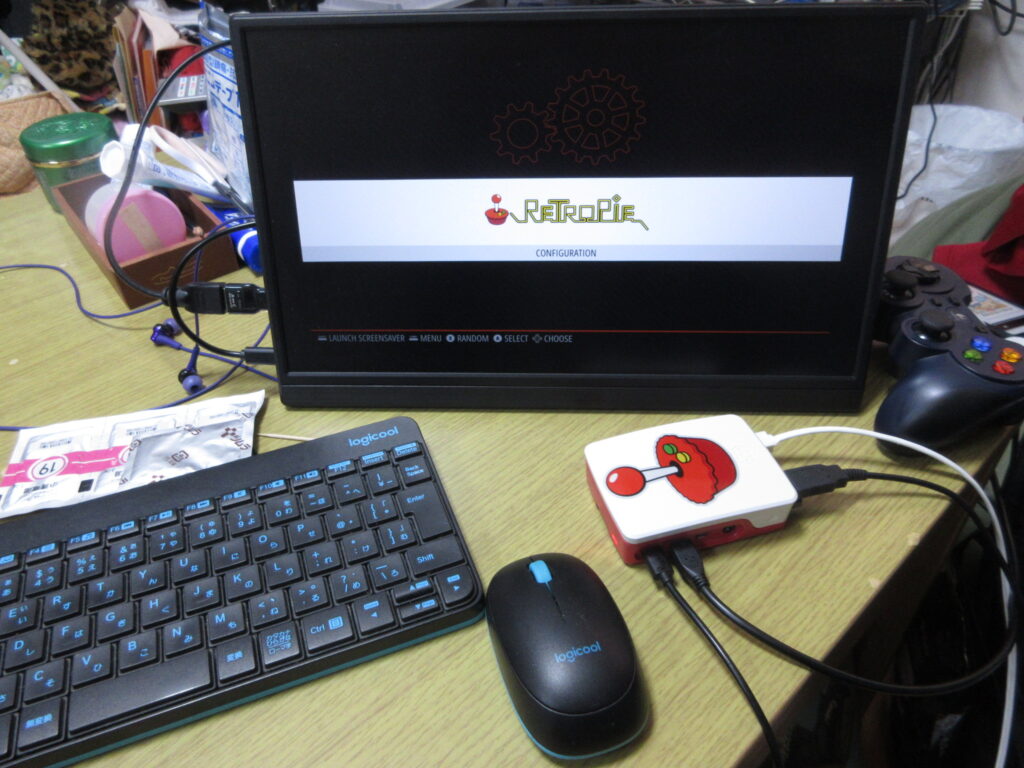
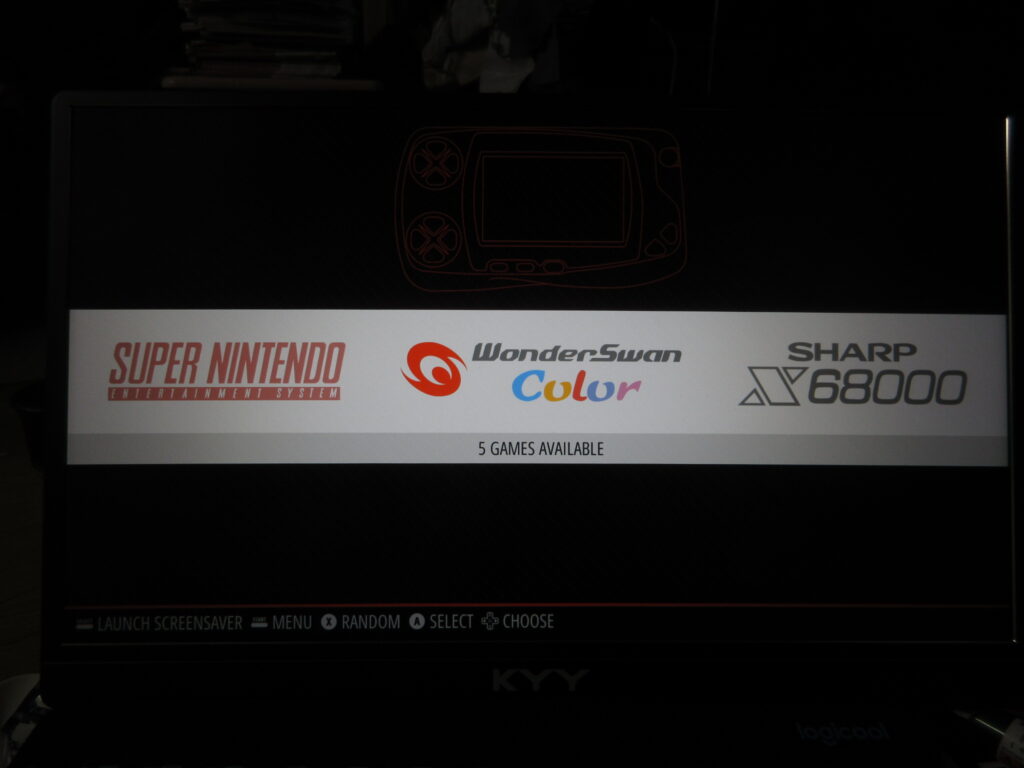
So here it is after it booted up, before any roms were added. I had to install emulators, BIOS files, the config files, and the downloaded images of the games’ covers and such. The Saturn emulator for RetroPie on a Raspberry Pi isn’t worth using. The ARM architecture cannot handle it, while the x86 architecture of my desktop can run a RetroPie Saturn emulator just fine.
At first I figured that a 32mb SD card would be enough space to install everything I wanted, but considering that I have several CD-based games for the Turbo Duo and Mega CD, I was not able to copy over all the games I wanted to. I went to Yamada Denki and bought a 128gb SD card and started over.
It’s not enough to just install the emulators and copy the roms over to their respective folders. The Retroarch controller config files as well as the game lists and game photos from the game data scrapers should also be copied to the RasPi’s new SD card. Here’s a list of what I made sure I copied over to the SD card:
home/RetroPie/BIOS -> Where any necessary BIOS files go, of course.
home/RetroPie/roms -> The actual games, duh.
opt/retropie/configs/all/emulationstation/downloaded_images -> When you scrape the games’ covers and such, this is where those images are stored for each console.
opt/retropie/configs/all/emulationstation/gamelists -> The info you’ve scraped with the games’ descriptions. Those downloaded images don’t mean a thing without these files!
opt/retropie/configs/all/retroarch/autoconfig ->This is where your controller configuration files are stored. Of course, you could just configure your controllers from scratch, but since I had to manually edit the config file for my Mayflash Sega Saturn converter, conserving this file is a must! On a Saturn pad, the LB and RB buttons become the Z and C buttons respectively, and since there is no Select button, I had to change how the menu is loaded in-game so as not to exit the game every time I pressed the Start button!
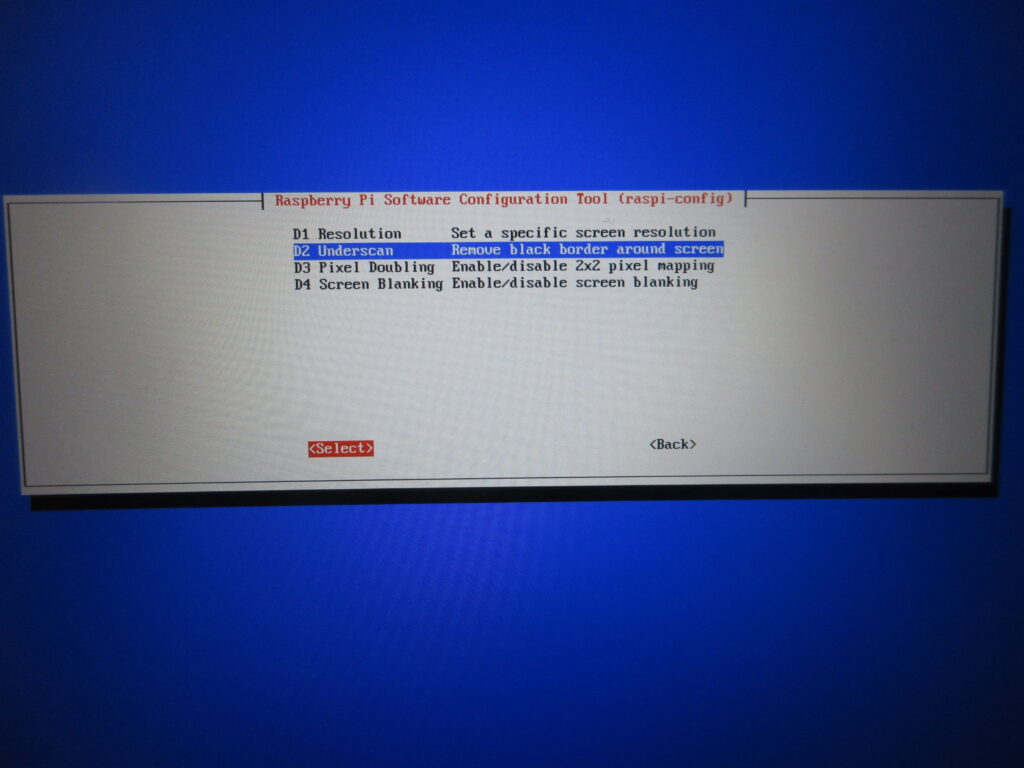
Once all those files were transferred over, it was time to test it out. I didn’t like how there was a black border on this 16:9 monitor, which made the game screens smaller. What the heck?
Here’s what I did. I set it to a resolution of 16:9 60fps and then with this “underscan” option I removed that dumb black border.
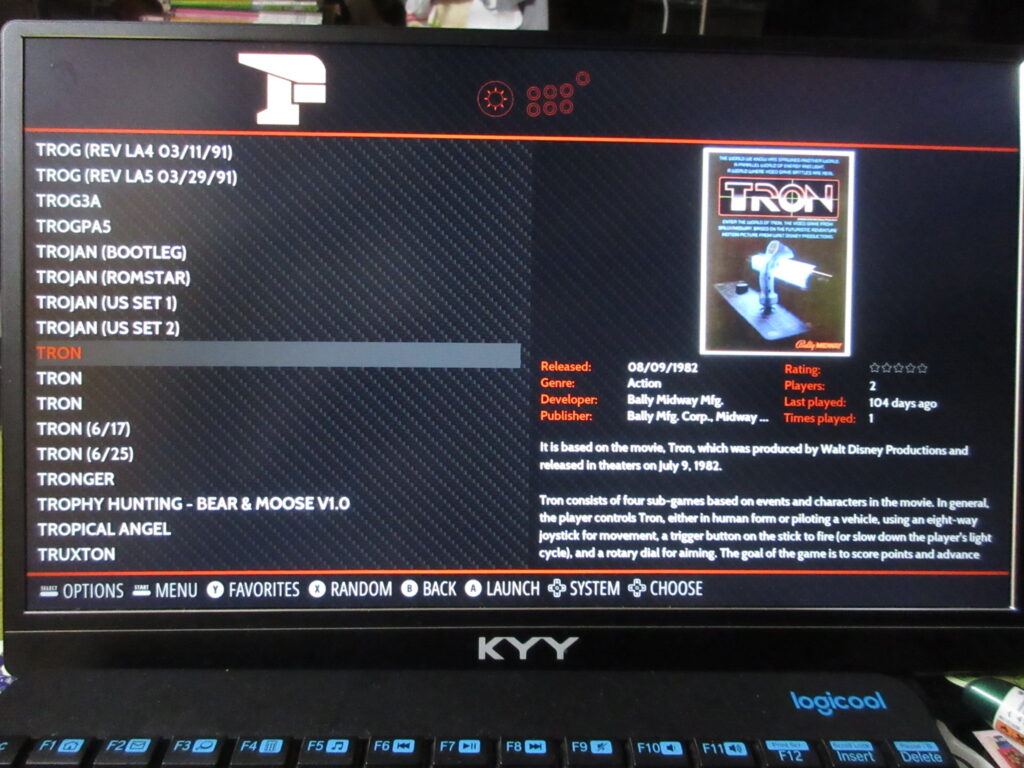
The scraped data is all there now.
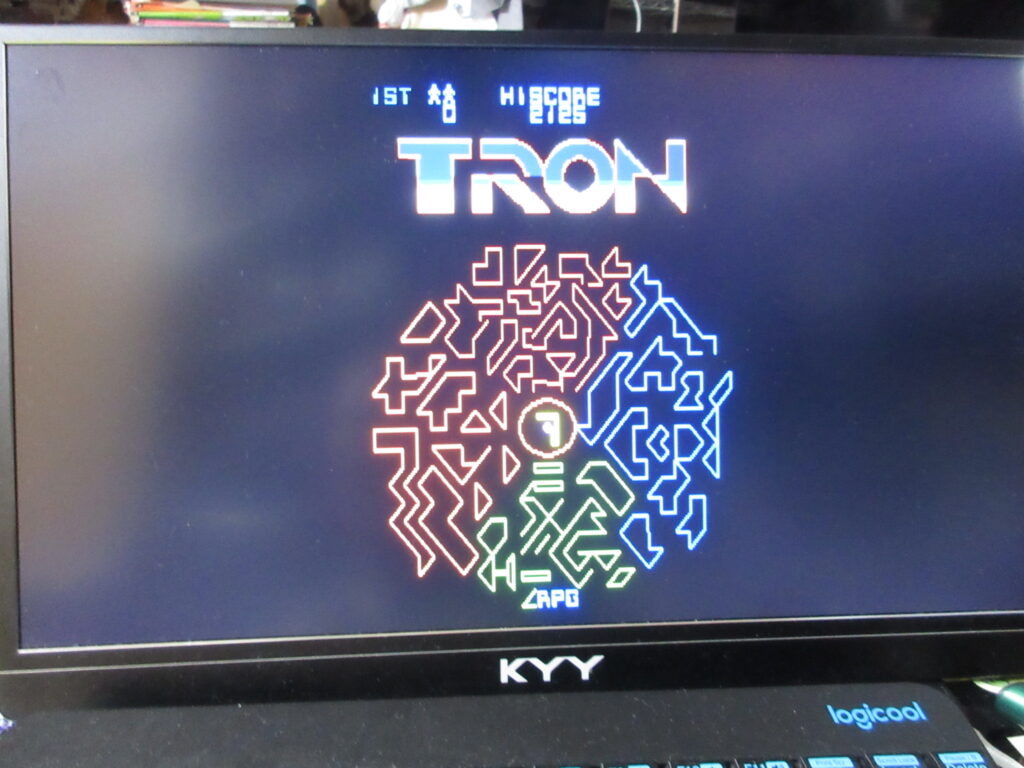
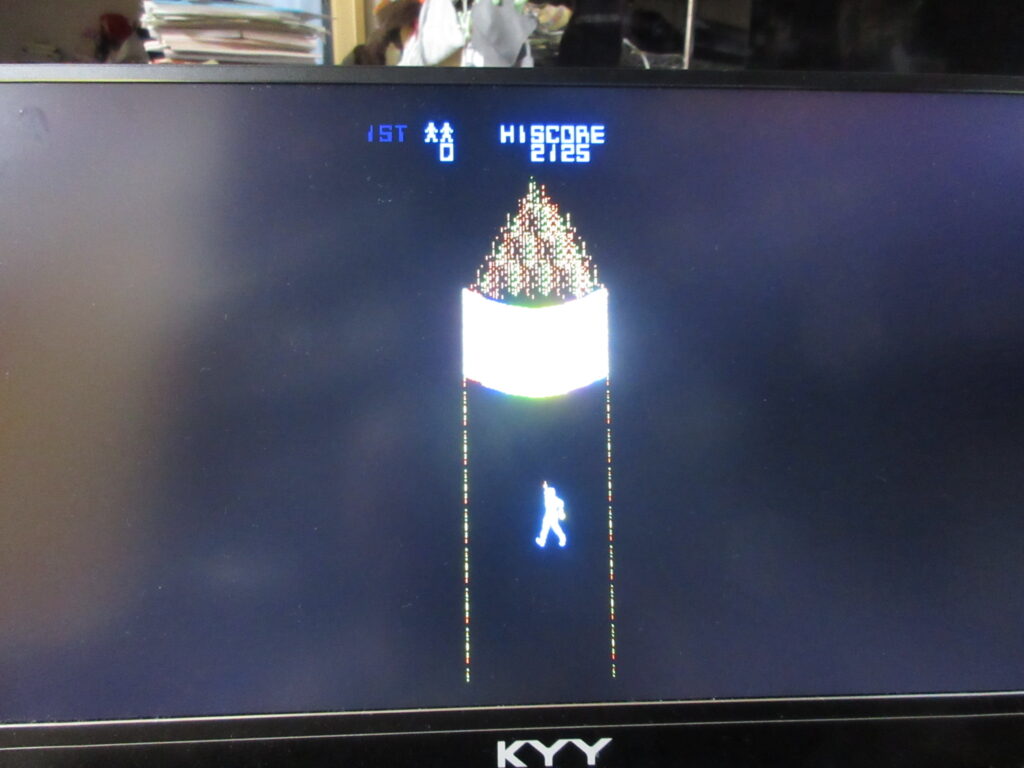
Tron. I’ll have to edit the game’s input configuration. This game is always awkward to play emulated because the arcade game had both a joystick and knob.
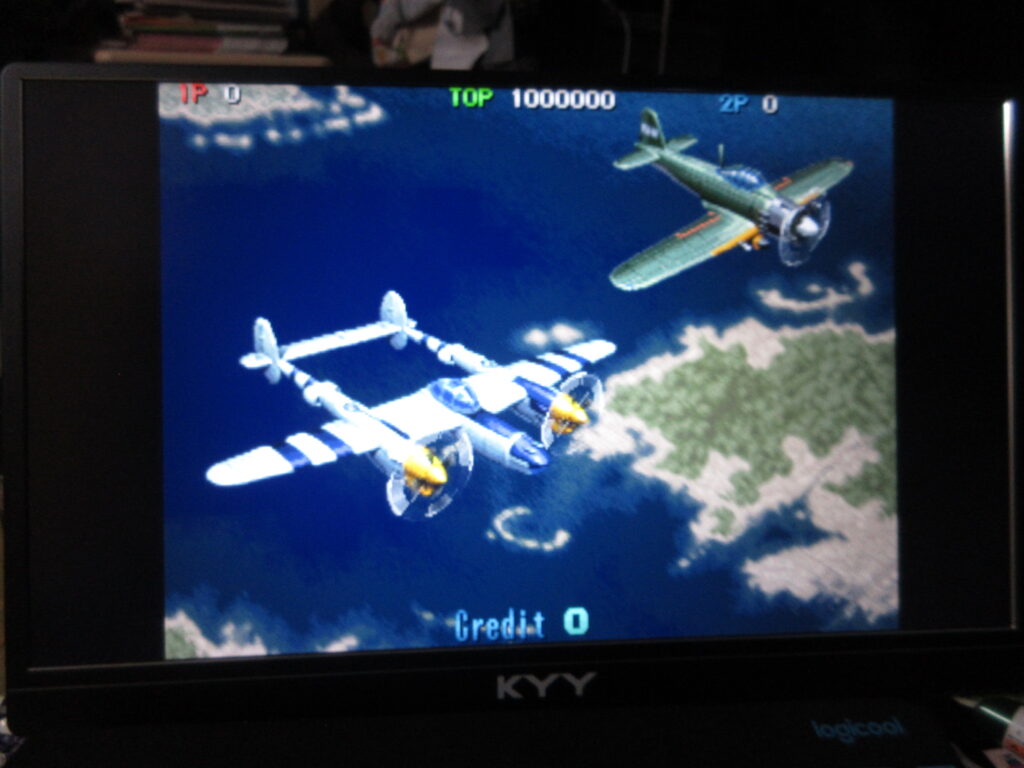
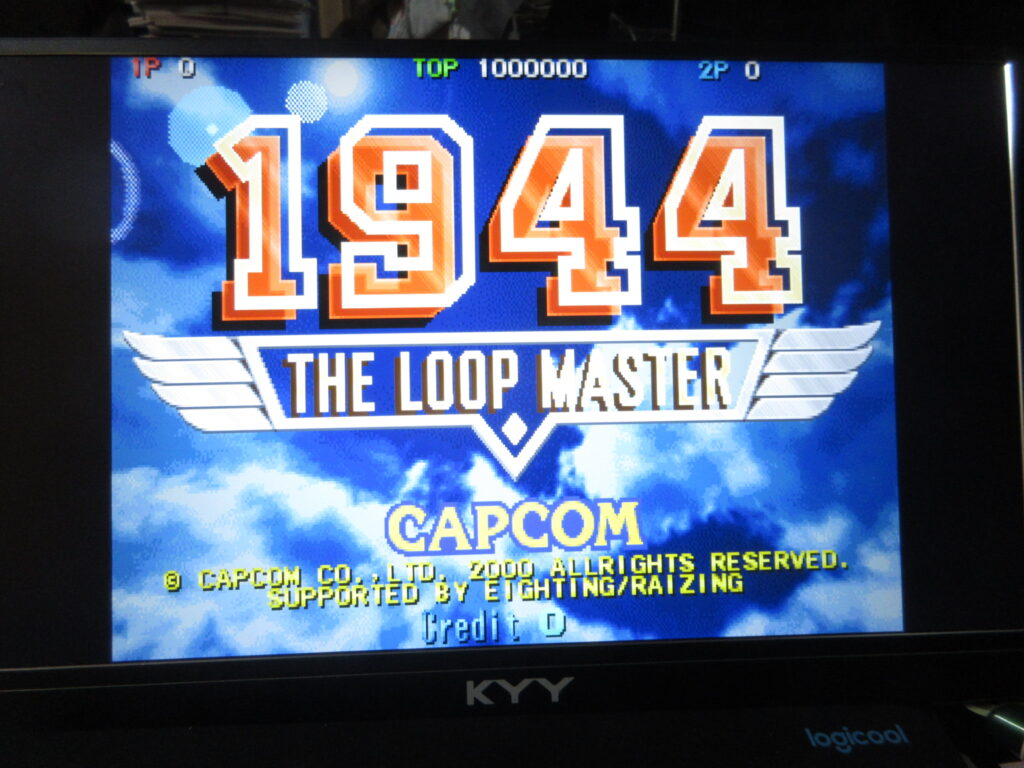
1944: The Loop Master. Once I add a CRT shader for the screen, I’ll be all set.
I’ve had a difficult time setting up Japanese language input in Bazzite. I’ve done this with Ubuntu, Mint, Raspberry OS, and Zorin. Bazzite is slightly different. With Raspberry OS, you go into the Package Manager and add Fcitx5 and Mozc. In Mint and Zorin, these are separate Flatpaks you’d install through the Software Library.
Bazzite is a bit different, and it stumped me. I’m new to Bazzite, and it’s Fedora-based, not Debian-based as I am used to. For one thing, you don’t type sudo apt install” but instead it’s rpm-ostree install. 20 years ago when I first started using Linux, I was using the yum command to install programs in Fedora. Also, Bazzite’s software installer is called “Bazaar.” I installed Fcitx5’s flatpak that way, but I did not see a separate flatpak for Mozc like I’m used to. So that was my problem. It’s just different.
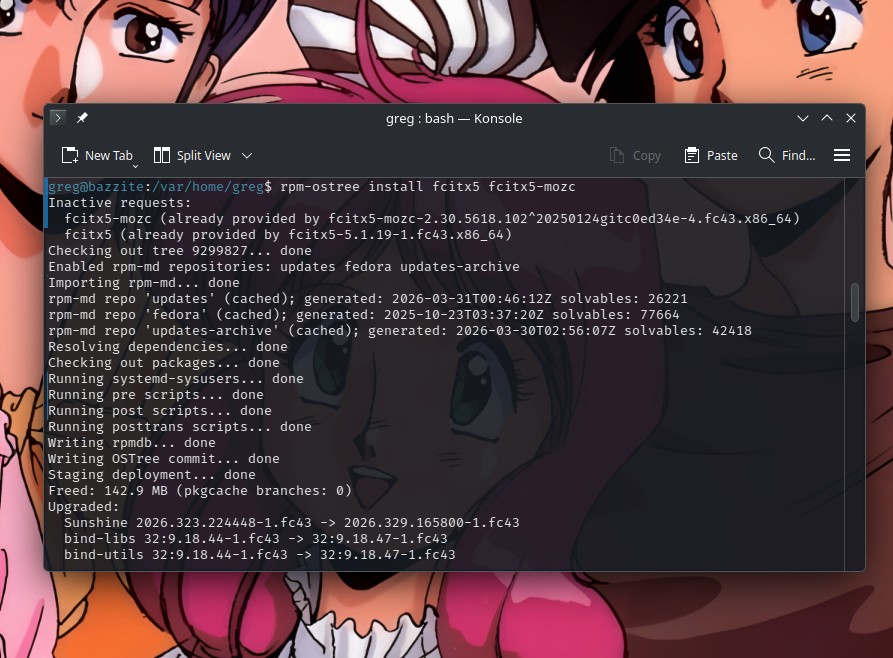
I figured that I’d have better luck using the terminal. After trying to find info on DuckDuckGo and Google, I figured I could accomplish this through rpm-ostree install fcitx5 fcitx5-mozc and it would maybe just install over what I’d already installed.
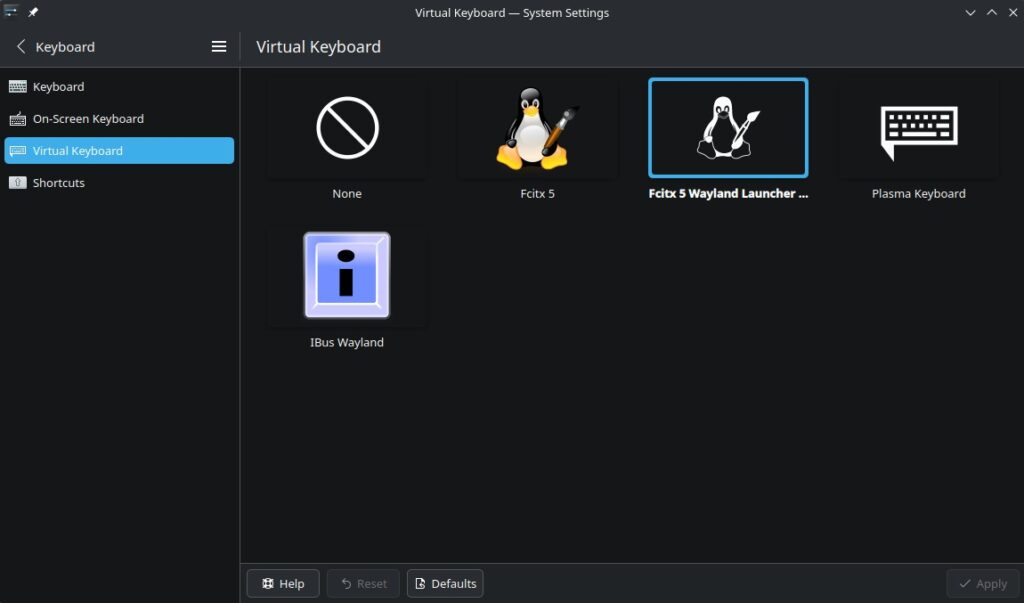
Well, that didn’t work. It told me that Mozc was already provided. I was also getting a popup for Fcitx saying Wayland Diagnose: “Fcitx should be launched by KWin under KDE Wayland in order to use Wayland input method frontend….” etc. So it was telling me to switch the virtual keyboard to Wayland. I dunno what that’s about, but I always do what I’m told to do. Computers, coworkers, neighborhood children, fortune cookies, random strangers, what have you. I always comply when I’m bossed around. So I did it.
…And the situation didn’t improve. I still couldn’t find Mozc.
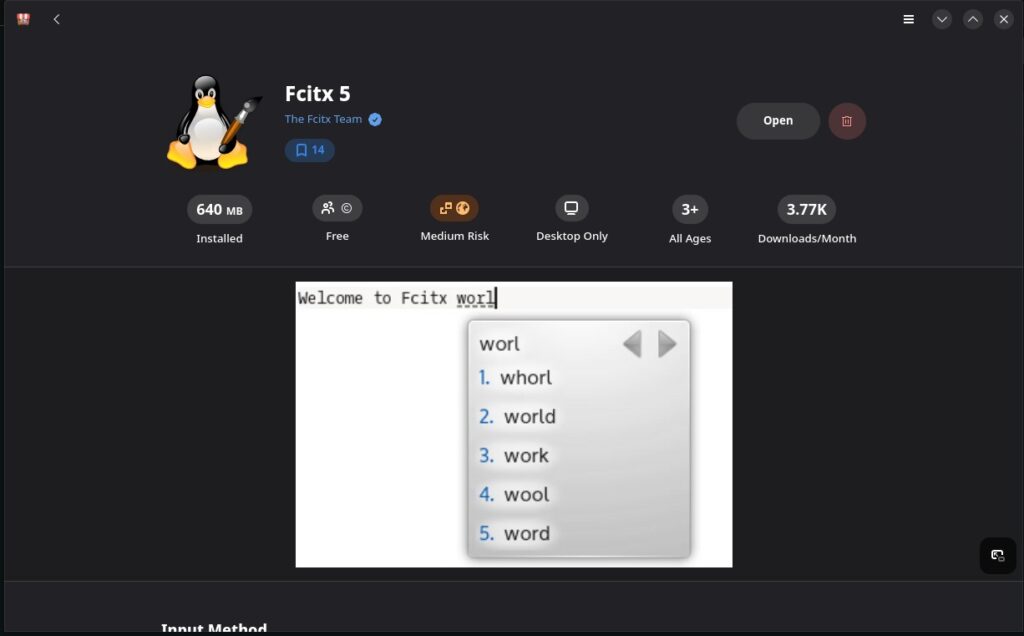
I turned to the Bazzite Reddit forum on r/Bazzite for help. I got some good responses, but not a solution. However while I was tinkering around, I went back to the Fcitx 5 page in the Bazaar library.
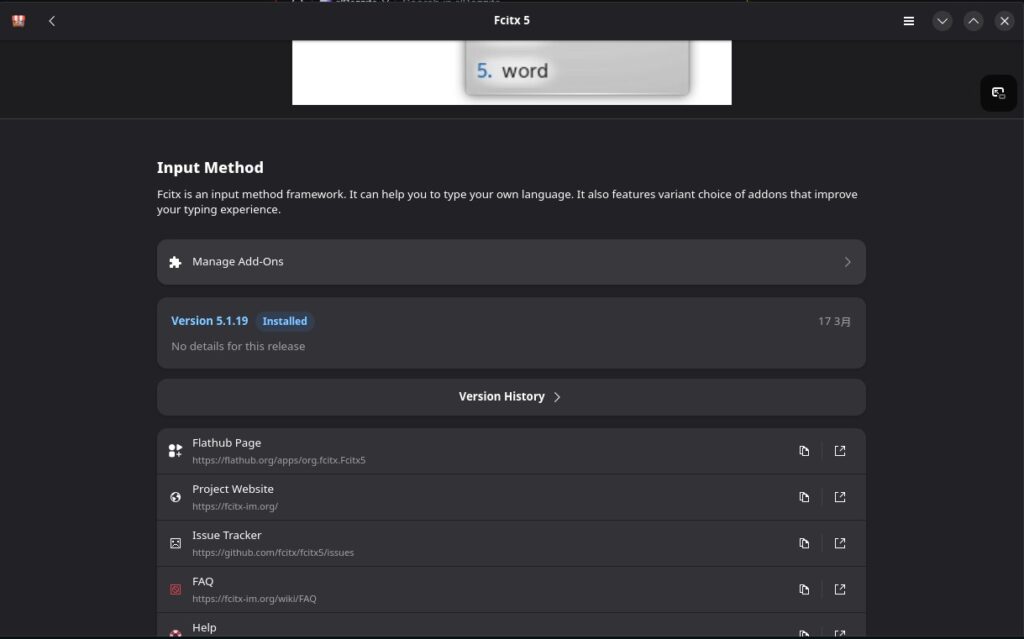
Then I noticed the little jigsaw puzzle piece icon where it says “Manage Add-Ons.”
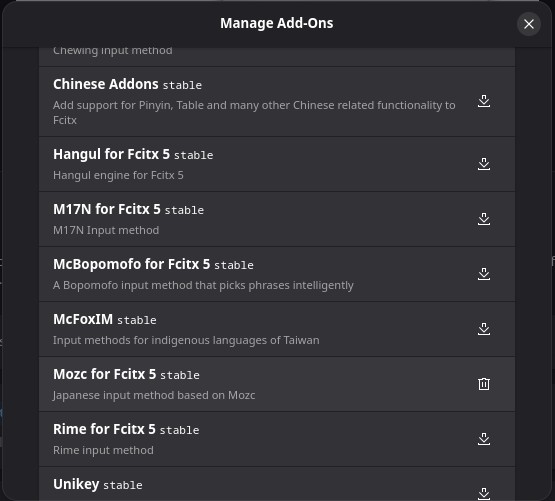
Oh gosh, here is where the various add-ons are located. I overlooked this when I first installed Fcitx5. Here is “Mozc for Fcitx5” selectable. All I had to do was click the download button to add it. Nuts. THAT is what I needed to do.
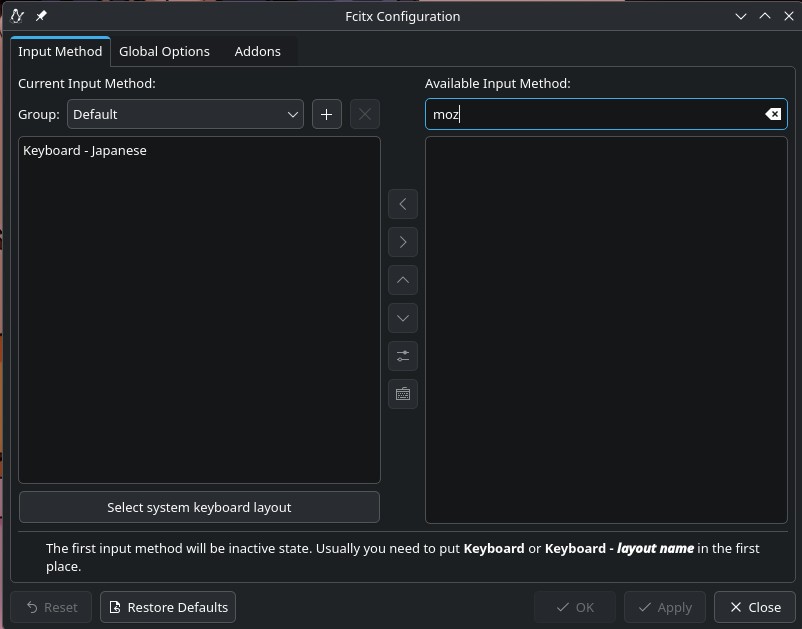
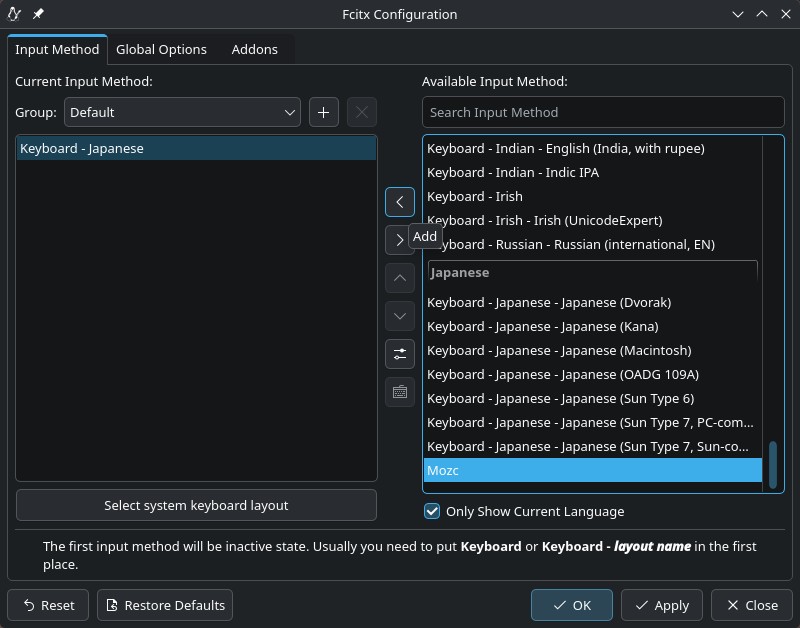
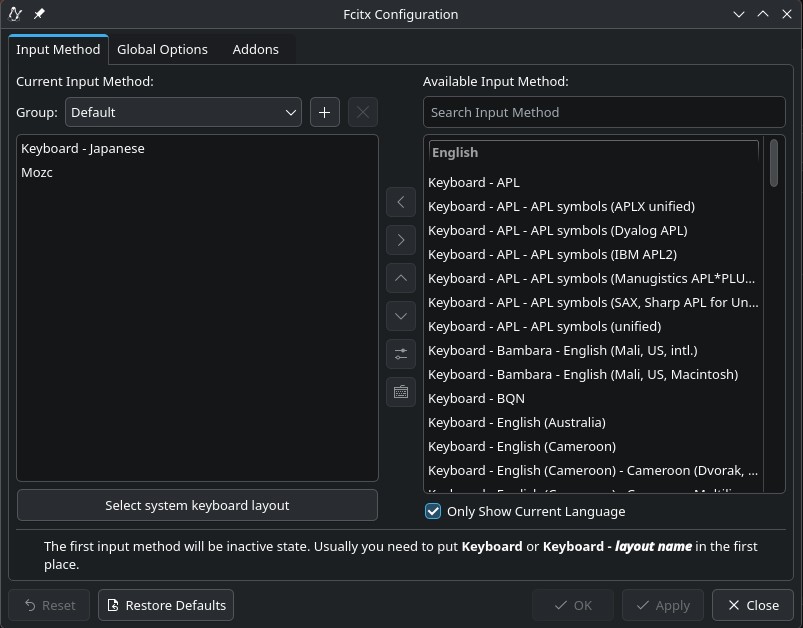
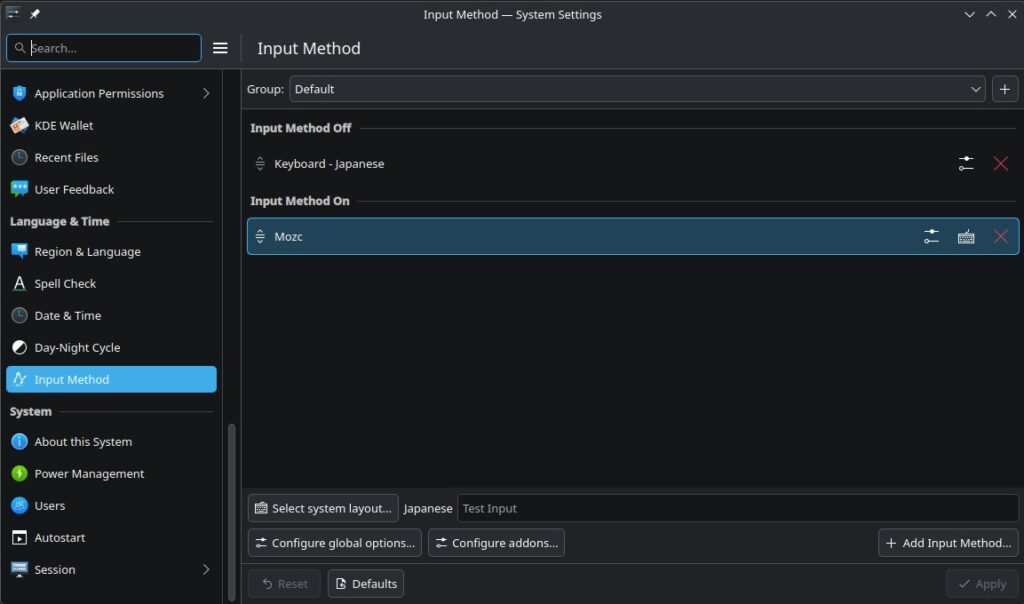
After a reboot, I went back to System/System Settings/Language & Time/Input Method. Mozc was now selectable. All I had to do was click on the right arrow to add it.
Now it’s there!
At last, Japanese text input is available. So TL;DR: I’m just used to installing Fcitx5 and Mozc as separate packages in Debian platforms, but apparently with Fedora you just install Fcitx5 and from there choose Mozc via an add-on. It makes sense, but it’s just not what I’m used to doing.
So now under System/System Settings/Language & Time/Input Method, this is what it shows. Problem solved!
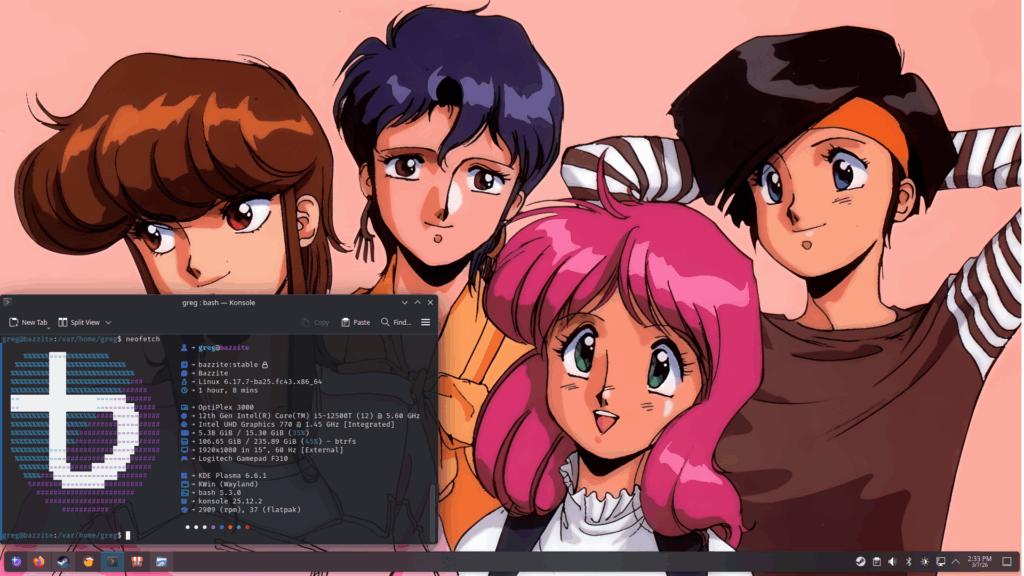
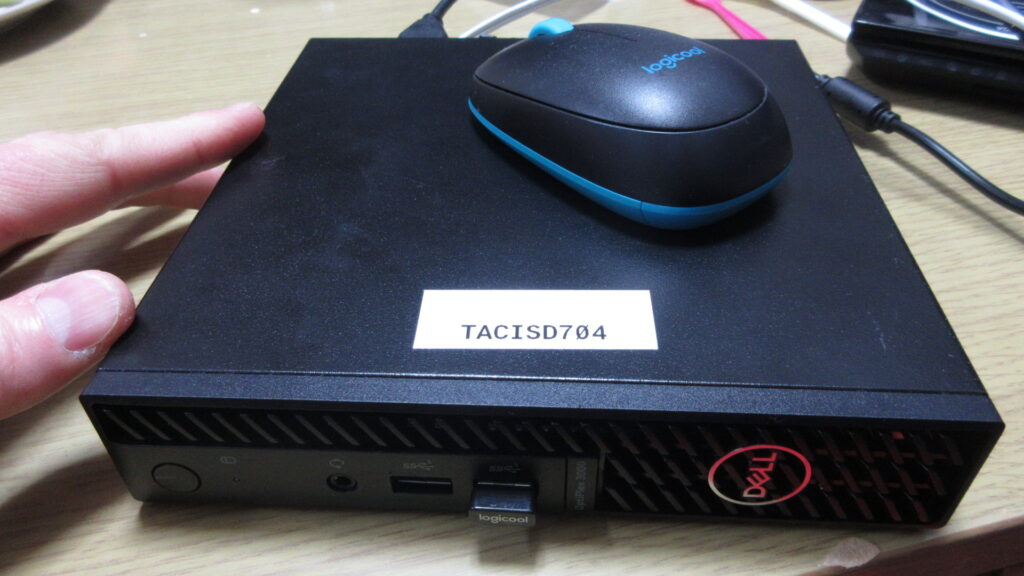
Here’s what my new Bazzite desktop looks like, with the girls from Bubblegum Crisis. My friend Lou is visiting Japan and gave me a Dell Optiplex mini computer (Intel Core i5) he rescued from the trash at his work after his company was bought out by a smaller competitor of all things. It had Windows 11 installed on it, and I installed Bazzite Linux which wiped away all that yuckie grodie Windows 11 crap off of it.
The unit is pretty small! I was surprised at how small it is. The Optiplex is pretty small, about four times the size of a Raspberri Pi. Unlike a RasPi though, this is a fully functional computer. It also has better specs than my desktop computer, which has a pretty old GPU from about 10 years ago.
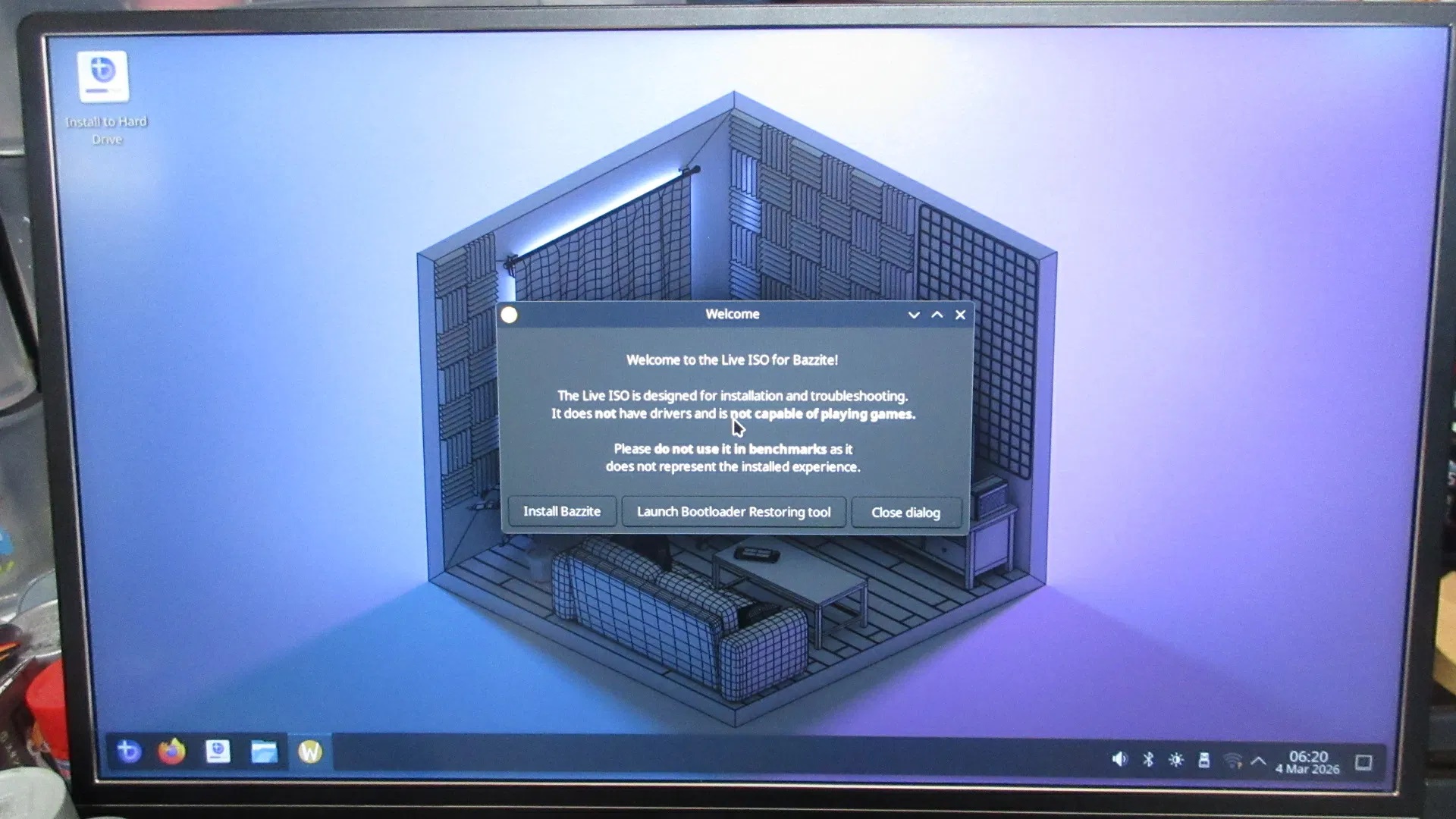
This is once it finished booting from the USB drive. After that, I installed the OS onto the hard drive.
Bazzite is essentially identical to Steam OS, although it’s Fedora-based rather than Arch-based. Bazzite desktop environment choices are either KDE Plasma like what I chose, or the gaytarded GNOME environment, which is basically the Fisher Price version of Linux. KDE resembles what GNOME used to look like before it looked like a lame tech demo.
First of all, I have to say that I’ve had problems with Steam ever since I upgraded to Mint 22. I think it was my fault, because I followed bad advice from somebody on the Steam forum about copying over Steam data files rather than just installing them fresh after a clean upgrade. Ever since I did that, some games won’t recognize the controller and Steam Input stopped working. Not only that, but downloading stuff can take a long time for some reason. I really should wipe that HD clean and do a clean install soon. Anyway, I installed a whole lot of games in short time and tested several of them out.
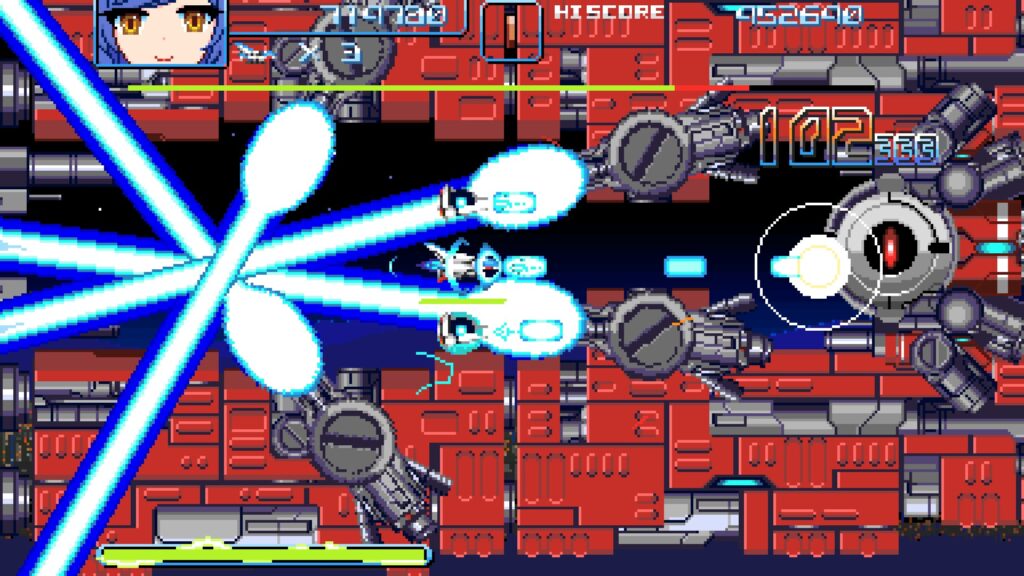
Revolgear Zero is a brand new shmup by Bikkuri Software, the same makers as Graze Counter. Their shmups have a PC Engine kind of feel to them. This is the most recent game I’ve bought on Steam.
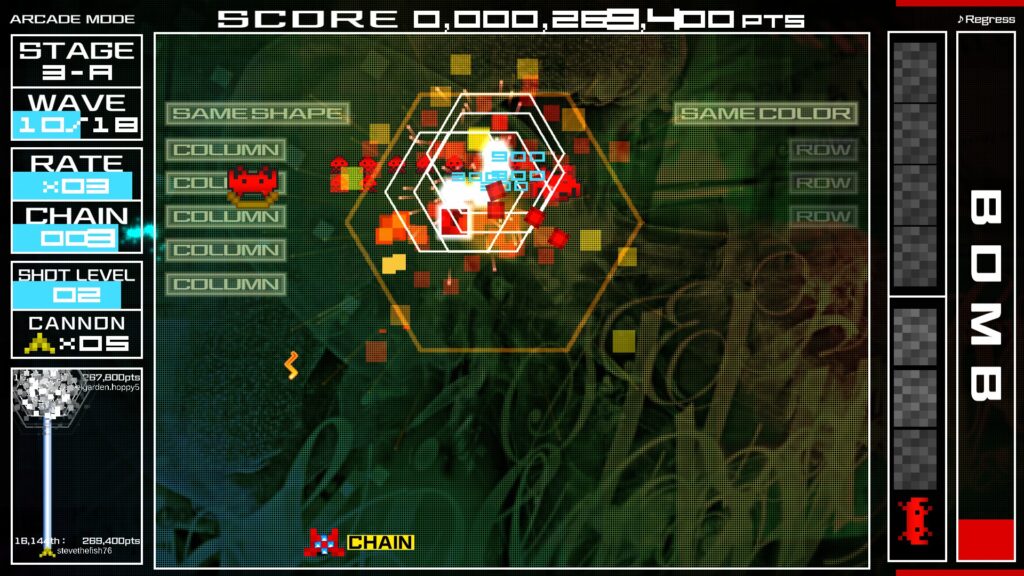
This is Space Invaders Extreme. This is one of the games that stopped working with my gamepad on my desktop.
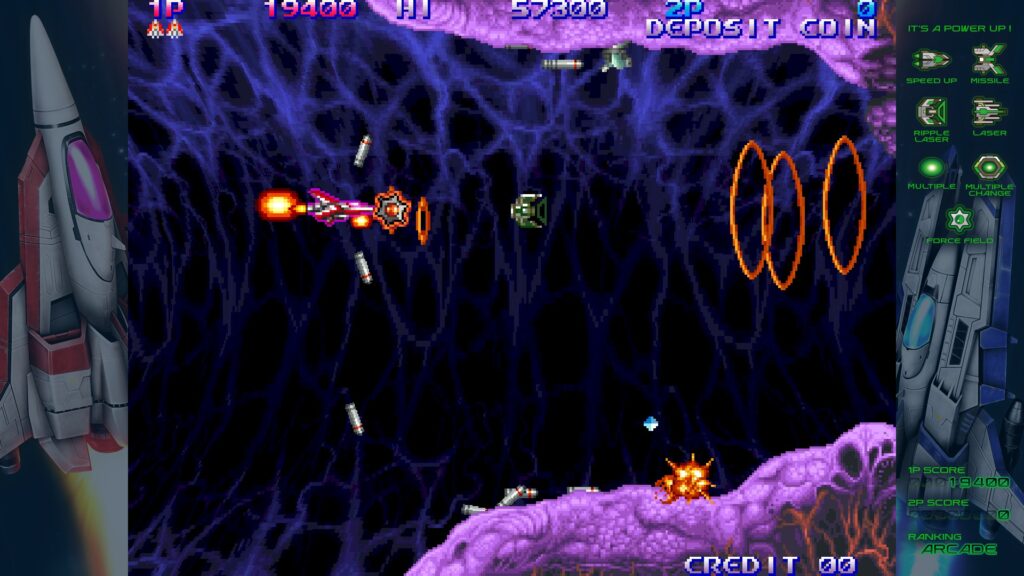
This is Salamander 3 on Gradius Origins. I bought this game in December, but the controller wouldn’t work. Here it works just fine!
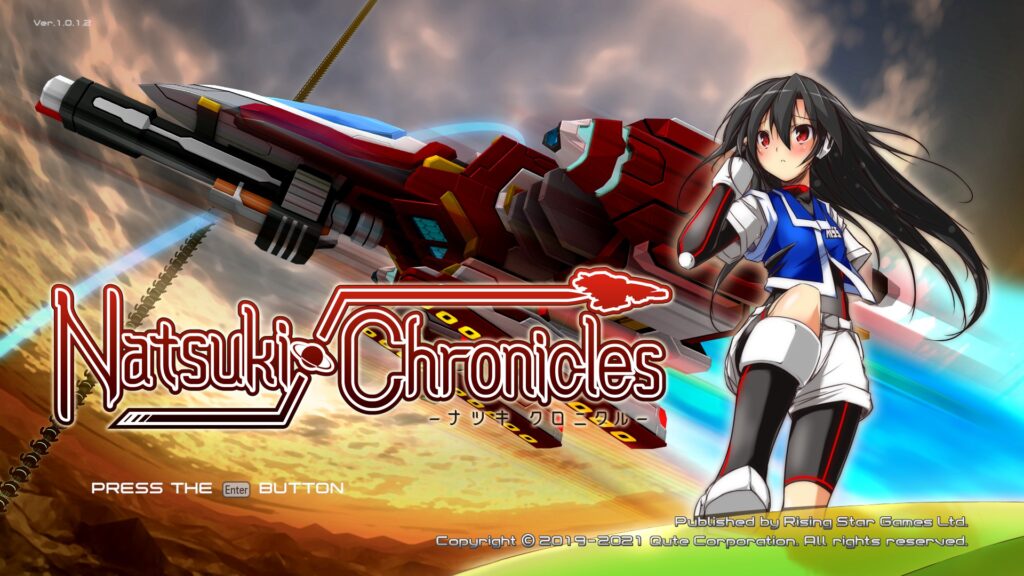
Natsuki Chronicles is a shmup that reminds me of the Thunder Force series. It runs a bit slow on my desktop, but it is smooth on this Optiplex!
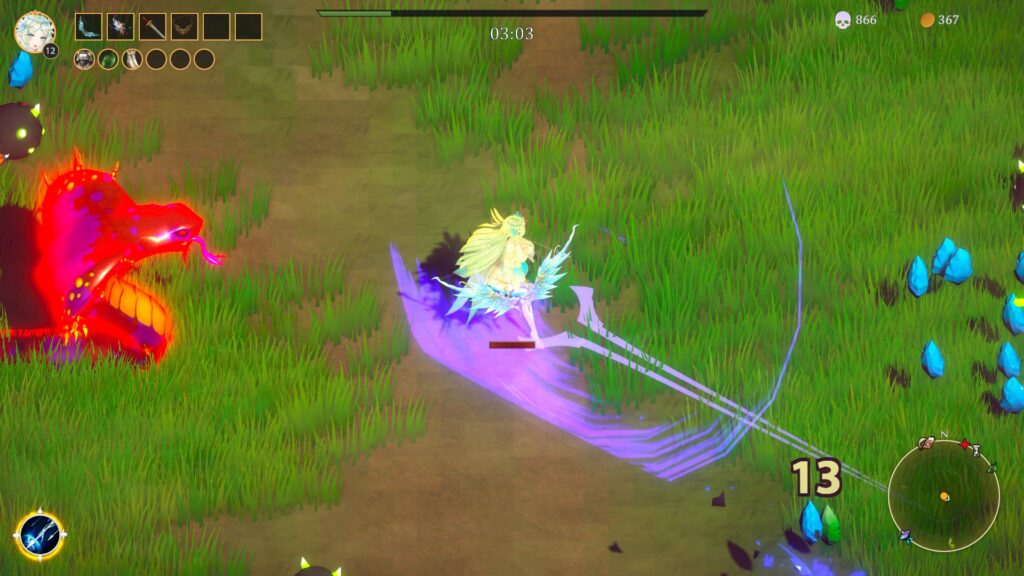
Beautiful Mystic Survivors is one of those twin stick action/Roguelike/arena shooters featuring what I call “moon boobs.” (I mean like jiggle physics if the girls are on the moon. It’s not too overdone here like it is on some smartphone games.) This game is kind of like Gauntlet meets Smash TV where your attacks are automatic and timed. You choose one of several large-breasted anime beauties on a quest and you get swarmed with ever-increasing hoards of enemies. It eventually starts to choke, but this runs smoother on this new computer than my desktop.
Shantae Advanced: Risky Revolution was an abandoned Shantae game for the GBA that was recently completed at last. It’s essentially a GBA game, but with some enhanced character graphics during cutscenes such as this picture above. The problem is that it’s completely unplayable on my desktop computer! This Steam version is just a GBA game with some overlay enhancements, so what the heck was WayForward doing when they screwed this up? How is a GBA game more taxing on a system’s resources than the previous game, Shantae and the Seven Sirens? Shantae: Half-Genie Hero was the most taxing game in the series, but I could still play it on my desktop. I found the GBA ROM for Shantae Advanced and downloaded it to play on RetroPie. I paid for the game, so I felt justified in doing so. Fortunately, the game runs smoothly on this new computer! Pixelated jiggle physics FTW!
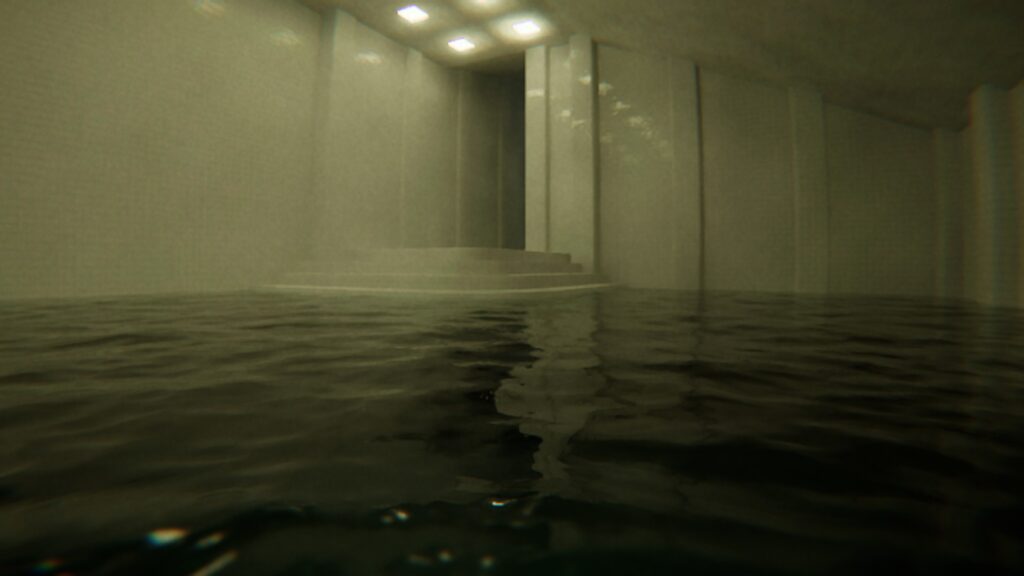
I tried out one of Ulan’s games, Pools. She says it runs rather slowly on the desktop, but here it runs pretty smoothly without having to sacrifice the visuals. Eventually I will install Alien: Isolation and see how it runs on this Optiplex.
I use a Logitech F310 controller. These controllers are alright, but I’m on my third one now. I threw my previous one out last year because the Y button was getting stuck or something. The one before that had something similar go wrong with it. Last night I accidentally pressed the Logitech button in the center of the controller and it brought me into a sort of Steam console mode. It’s called “Big Picture Mode”, which is basically like a fullscreen console OS. I guess Bazzite gives an option for the computer to boot up in this way or to boot to the desktop. Interesting.
I wasn’t able to install Mozc to use with Fcitx5 for Japanese IME keyboard input. Bazzite is a bit different. Since this Fedora and not Debian/Ubuntu based, the “sudo apt install” command doesn’t work, so I’ll have to figure out the different syntax. Apparently you type “rpm-ostree install” instead. I remember using the “yum” command in Fedora 20 years ago. Also, the software manager is called “Bazaar” and it took me a while to realize that this was the software library. I’ll have to get used to such differences.
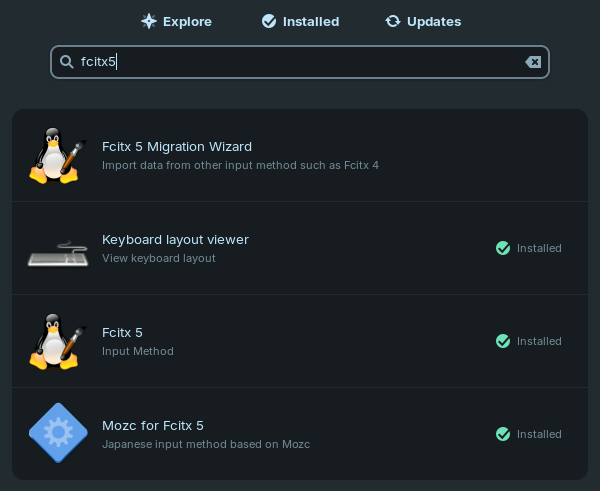
In order to configure your Linux computer to input Japanese text, you will need two programs: Fcitx5 and Mozc. Fcitx5 is the program which enables non-Roman language input and Mozc is what Fcitx5 uses to input Japanese. After installing these programs through either the software installer or package installer, you should see a keyboard icon appear on your panel. If not, a reboot may be required. I’m going to show you how to do this in Zorin OS. From my experience, this is pretty much the same in both Mint and Raspberry OS, so I imagine it’s the same for other Linux distributions. Don’t worry about the Fcitx5 Migration Wizard. That’s only for if you are migrating from version 4 to version 5. After installing these programs, this is what my Software installer shows:
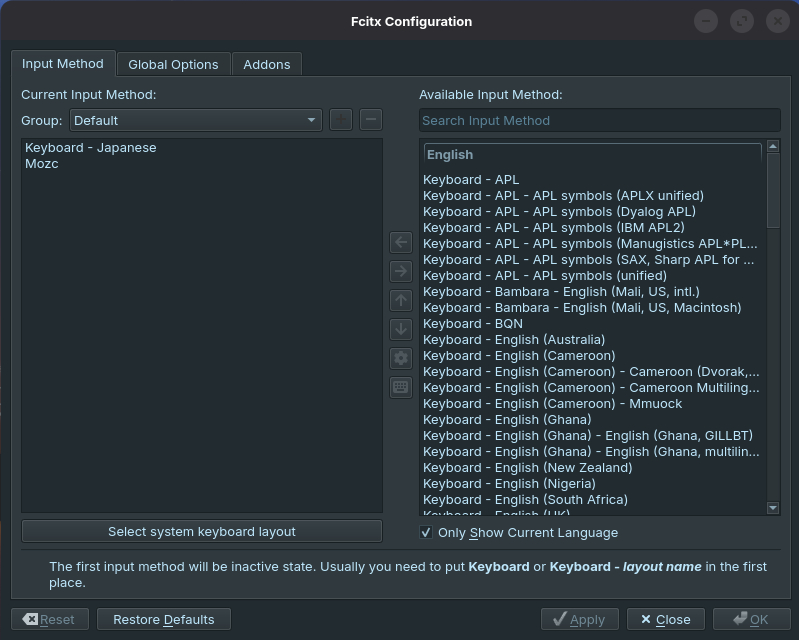
You will need to configure Fcitx5. Click on the keyboard icon (or it could be the letter A?) and select “Input method settings.” This is generally what you should see with the first tab, “Input Method”:
For input method, you will need to have “Keyboard” (here mine is a Japanese keyboard) as well as Mozc. Toggling between these two is what you need to do next. Click on the “Global Options” tab.
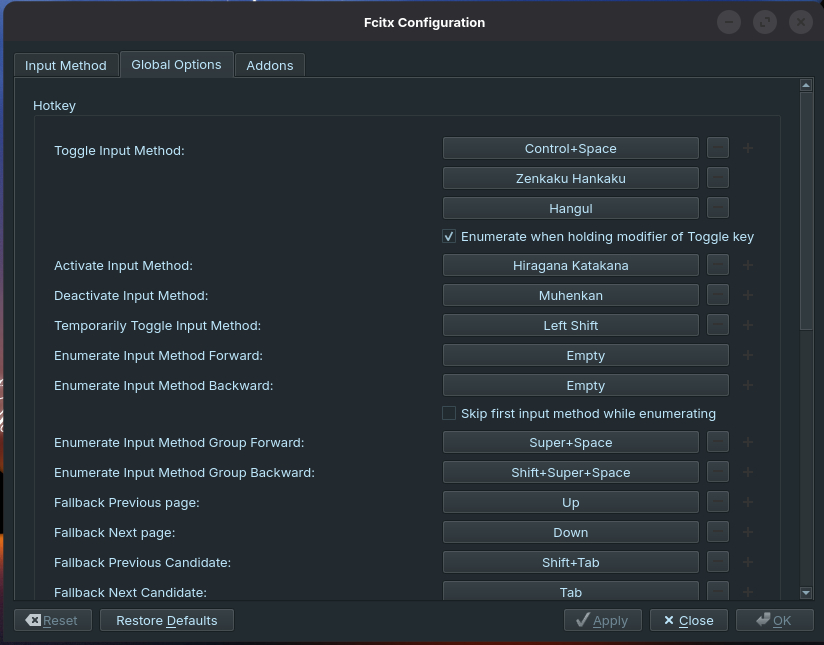
Here you can change the toggle input method. You can make it CTRL + ~ or CTRL + (spacebar). What you do is click the input method and then press the sequence you wish to use. Since a Japanese keyboard already has a button for this (hankaku/zenkaku), I made this available. You can always change the input method by clicking on the orange あ icon (Mozc) and then select “Mozc settings” (to select between full katakana, half katakana, and so on).
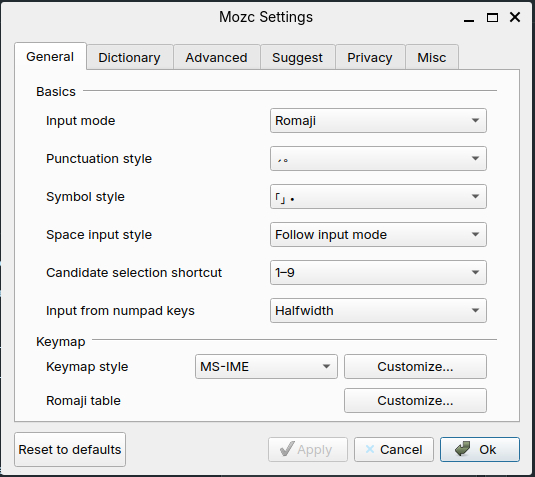
Look at the Mozc Settings. In Zorin, it’s under System Tools from your main menu.
Make sure that the input method is set to Romaji. This means that you will press the S key and then the A key to give you さ and so on. Otherwise, it’ll think you have a Japanese style keyboard and I don’t think even Japanese people know how to use a Japanese keyboard. Keymap style should be set to “MS-IME.” So you really don’t have to change anything here. However, through the Mozc Settings you can add certain words to dictionaries and save them. This is useful for more obscure kanji readings for proper names and such.
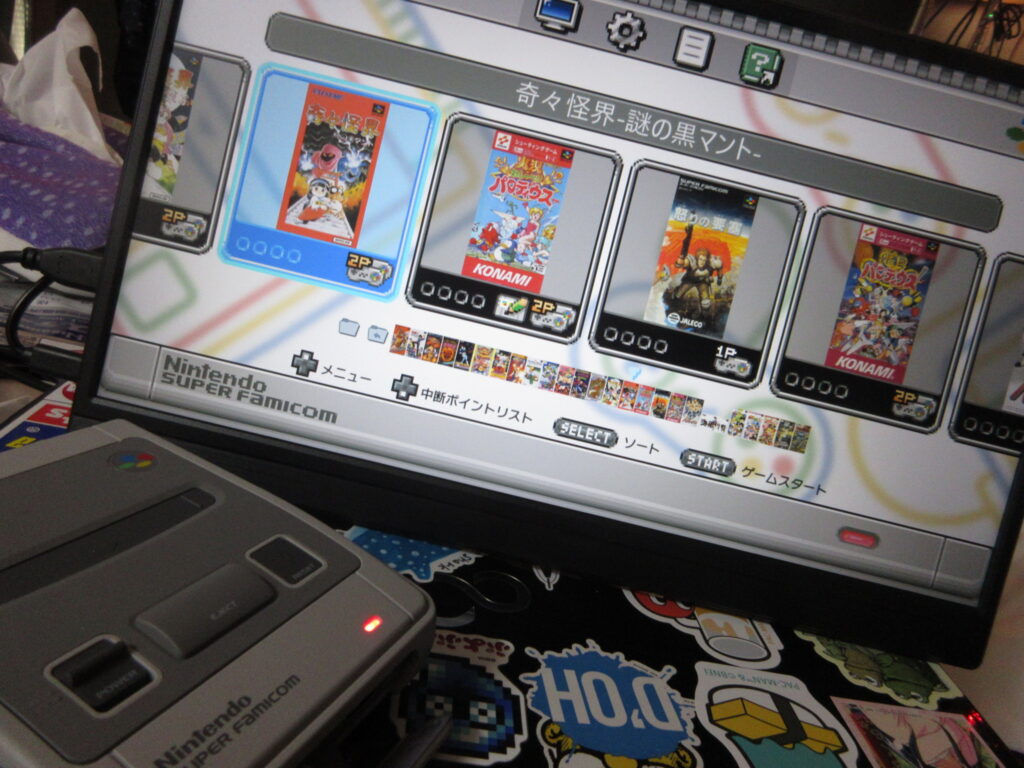
My Christmas Eve was spent hacking my Super Famicom Mini console. Unlike my Megadrive Mini, I didn’t really play my SFC Mini’s default game lineup because I found them a bit boring. Not only do I prefer Sonic over Mario, but there are no shmups for the SFC Mini!
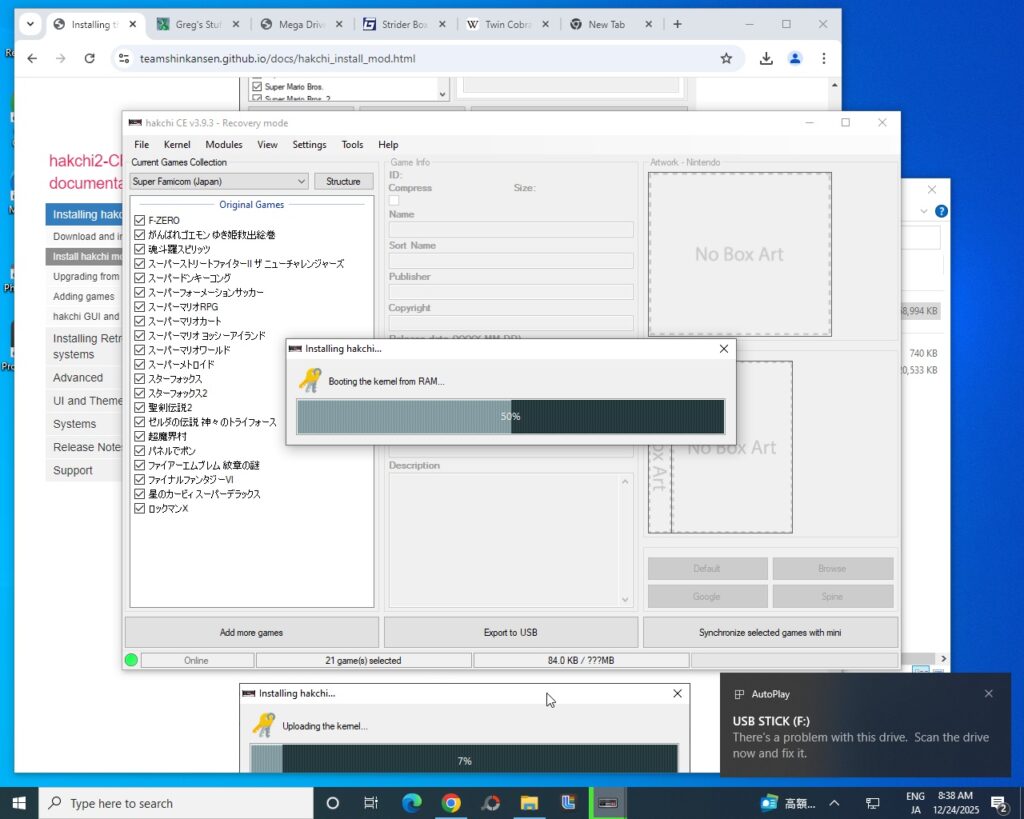
Using a program called Haxchi, the process is similar to how I hacked my MD Mini. Load the program, then under Kernel choose install/repair. This will update the Linux kernel on the device. It’ll then tell you to switch the SFC Mini on, and while pressing the reset button, plug in the USB cable and wait for it to recognize the unit.
These mini consoles are essentially Linux boxes, right? So why the hell do I have to risk contracting digital monkey pox by having to swap my hard drive out for my Win10 hard drive? I’d think that it would be very easy for them to release versions of this software for Linux, but unfortunately I am stuck having to use Win10. Gay. I read that someone had gotten Hakchi to work via Wine on Arch and Manjaro, but I couldn’t get it to work with Mint. Oh well.
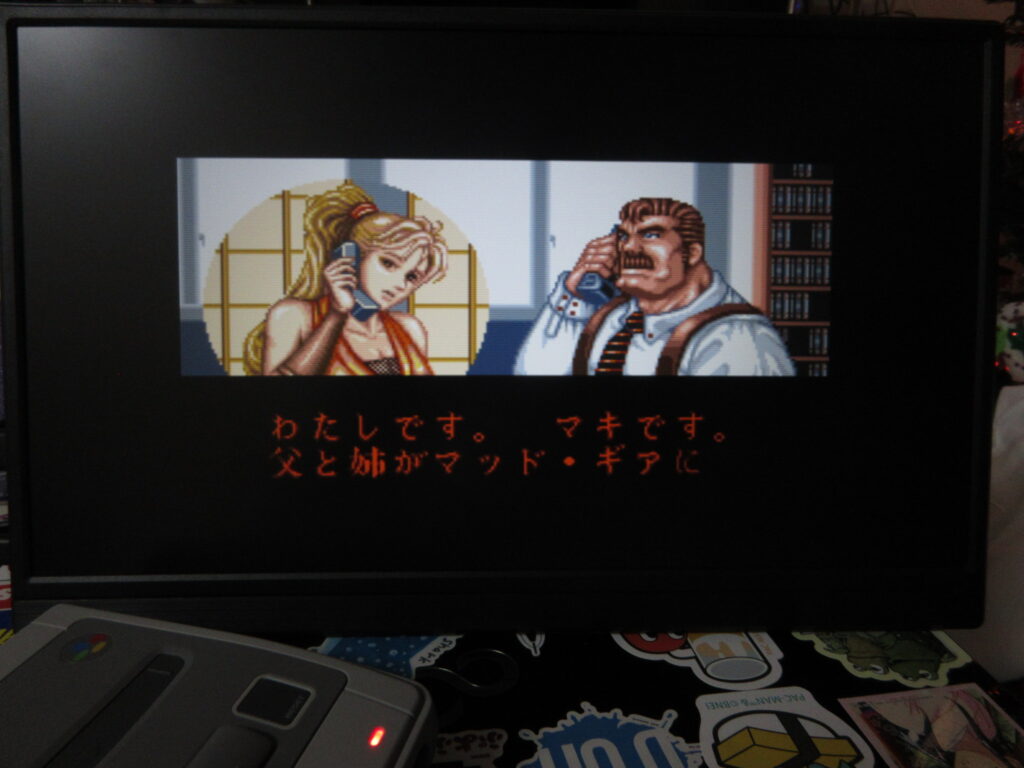
So here is how you add games. When you add a game, it defaults to box covers from North America/Europe, so I had to look up Japanese SFC box scans on Gamefaqs to keep things uniform. I mostly loaded the unit with Japanese SFC games rather than English SNES games, however there are some games I was surprised that there was no Japanese port, such as Sunset Riders. There was no Japanese ROM for this game, nor could I find any SFC box art for it.
After synchronizing the additions to the unit, it’s done! As you can see, I didn’t even come close to filling up the hard drive. I didn’t think to try adding any fan-translated games, since Project Lunar on my MD Mini didn’t manage to do this for me when I tried.
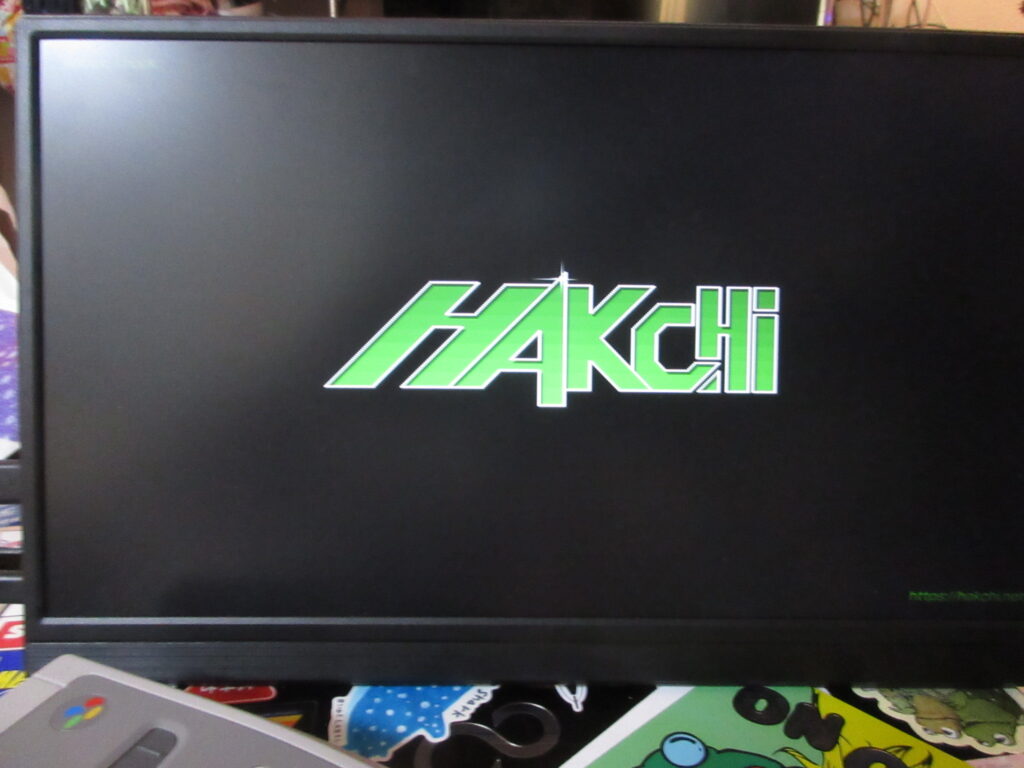
The Hakchi logo now appears when booting up.
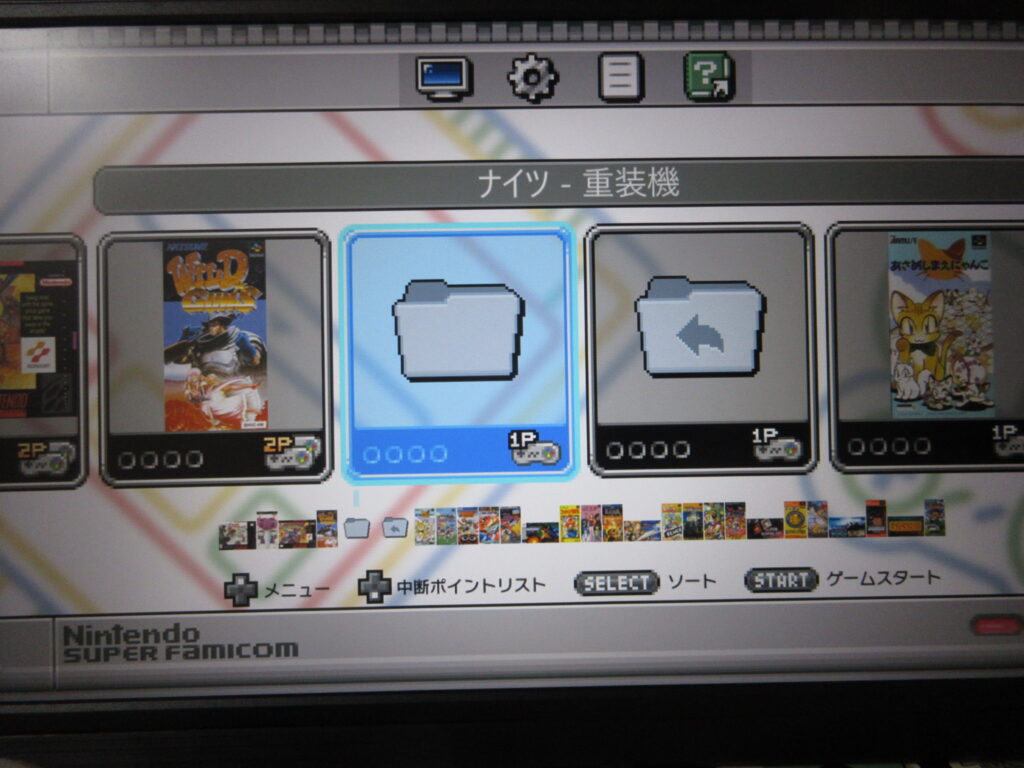
So now the game menu has this folder icon. Selecting this brings up another layer of games, the ones which I added.
Here are more games I added! Sonic Wings, Darius Twin, Tetris Battle Gaiden, and Doremi Fantasy.
With one more layer, selecting this folder icon will bring up a third set of games. Or the icon to the right will bring me back one level.
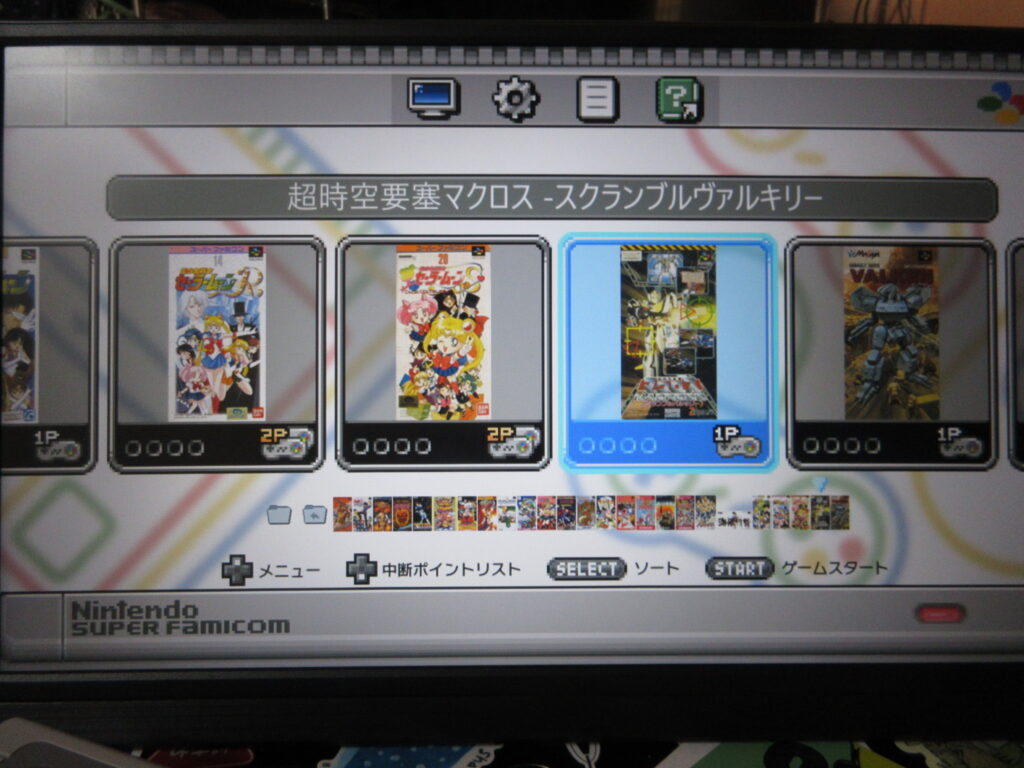
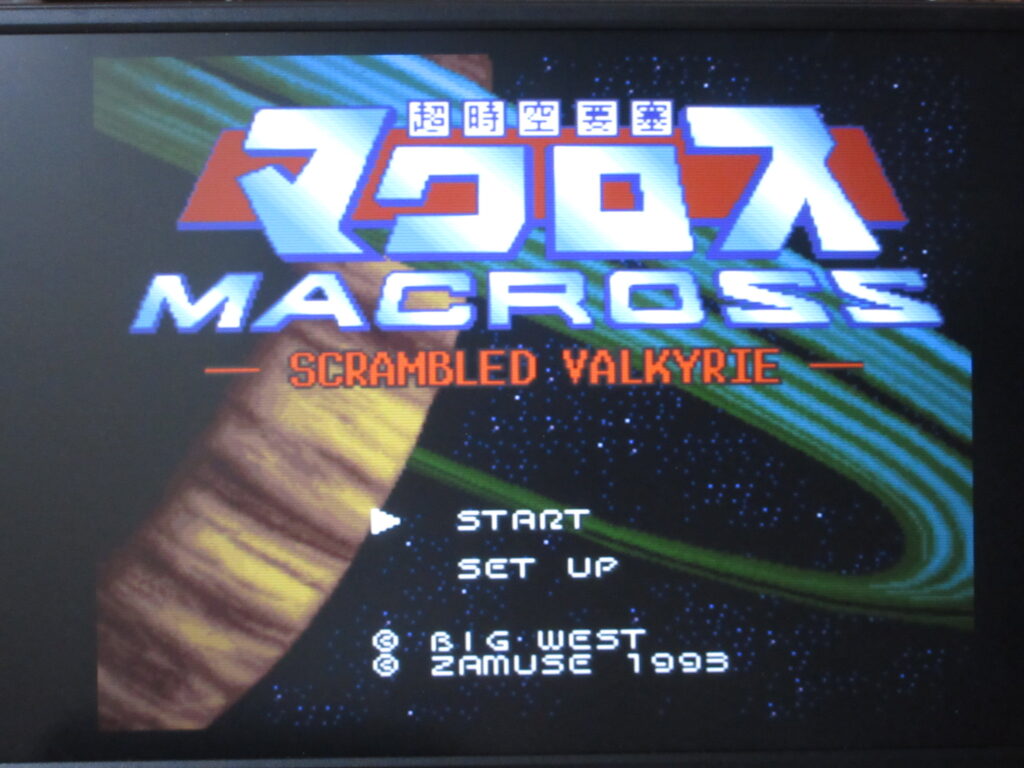
And here is the third layer, with Sailor Moon, Macross, and Assault Suits Valken among many other games.
Kiki Kaikai (Pocky & Rocky) and Hyper Iria.
Final Fight 2 and Wild Guns.
SHMUPS! R-Type, III, Gradius III, and Macross: Scrambled Valkyrie. While the MD Mini came with some great shmups, the SFC Mini came with none. Well, now mine is now full of great shmups at last.
Here are the desktops to all three of my Linux computers. I’ve switched from Shantae back to Nadia. First up is my Mint Mate desktop, my main computer. I just recently learned how to set the terminal transparency. Neat effect!
Zorin OS on my laptop. I’m still getting used to Zorin. It’s not bad. Pretty friendly.
Raspberry OS running on my Raspberry Pi 5. I’m only using a 32gb SD card for the hard drive and I maxed it out by just adding some Rifftrax movies to the Home/Videos folder. I intend to buy at least a 128gb SD card to upgrade.
This is the old Fujitsu laptop I received from my sister-in-law last Christmas. I installed Mint Mate on it, but what I should have done is install Mint XFCE instead because it’s tailored towards operating on older hardware more efficiently. All along, I knew I should have installed Mint XFCE on this laptop instead because it would have probably provided faster speed. So I thought, hey, why not try out ZorinOS for an all-new Linux experience?
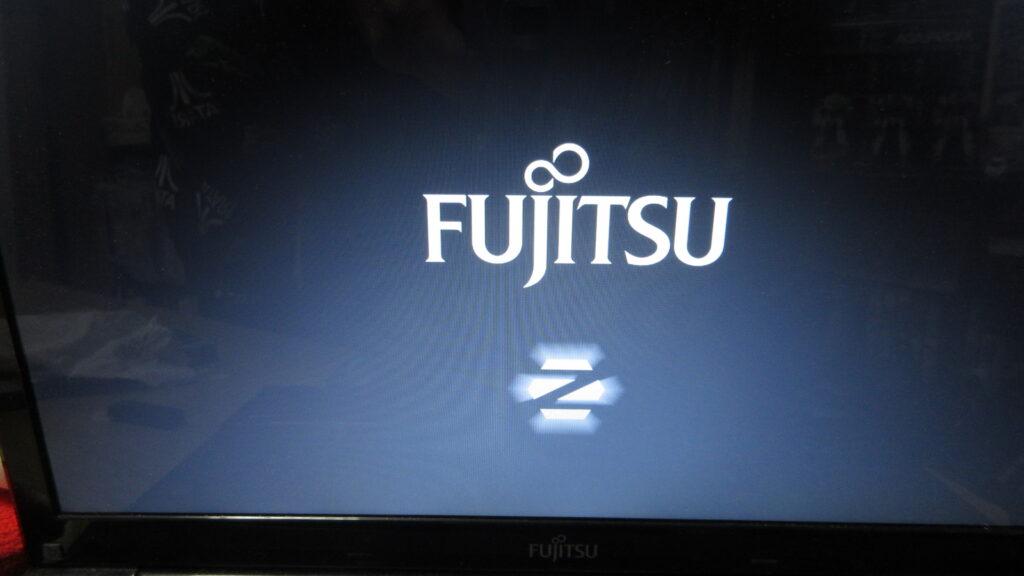
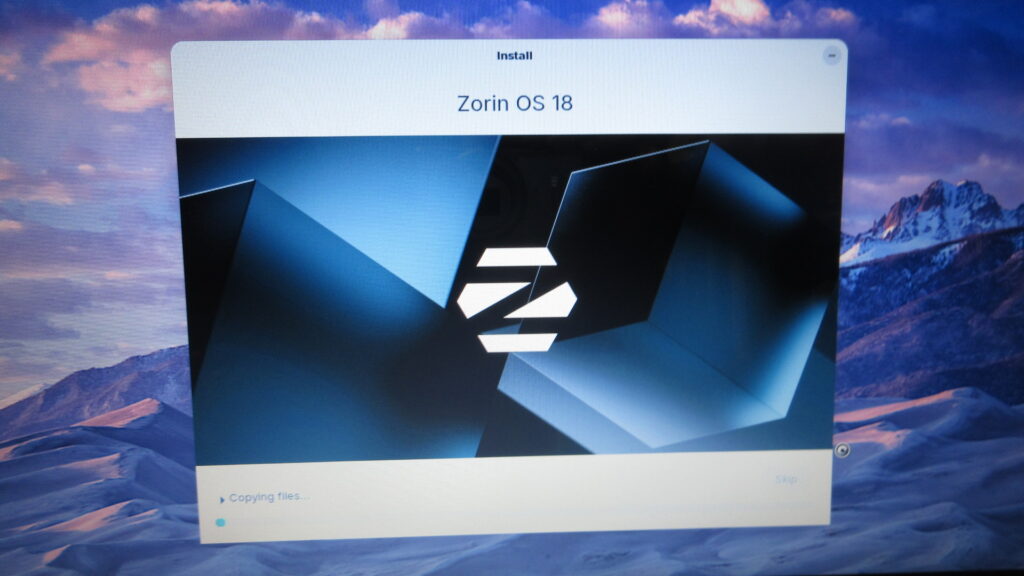
Like Mint, Zorin OS is another Linux distro that caters to Windows refugees. It’s also said to be pretty slim and ideal for older hardware. I figure that this would be an educational experience since for me. So in the picture above, I’m booting up with the install ISO and I like that pulsating Z. It looks neat.
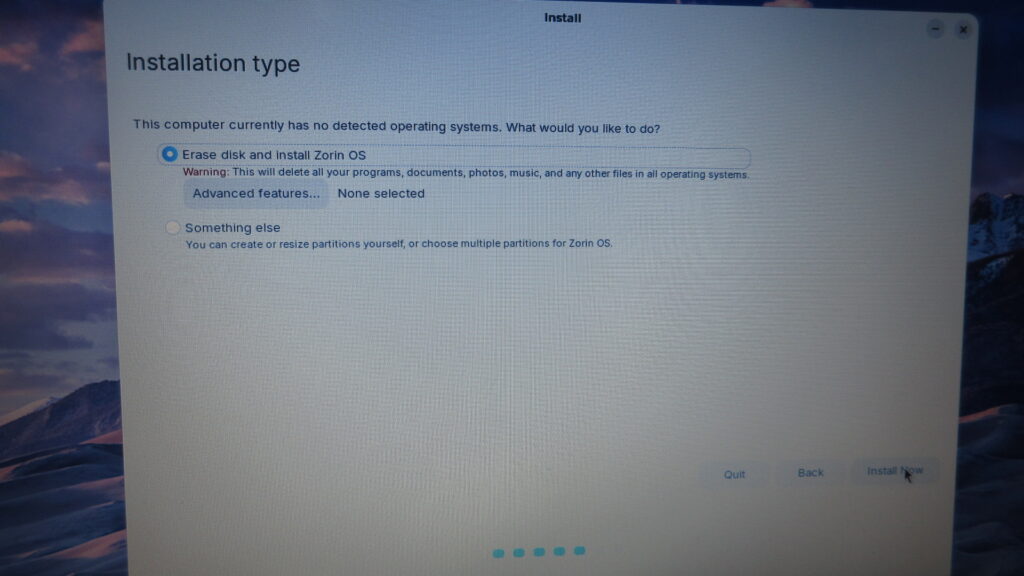
Everything has been backed up, which wasn’t a problem since this is just a secondary computer for me.
Proceeding with the install.
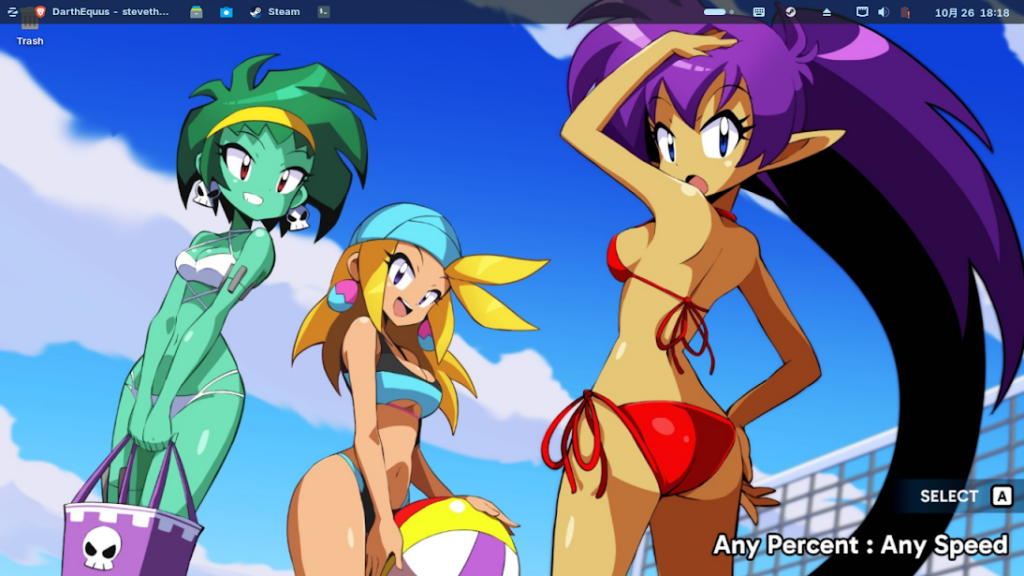
Here is a screenshot of my desktop. Shantae and her fabulous tits. I moved the panel to the top of the screen because I rather prefer to have it up there. My first Linux experience was on Fedora, which had the applications menu at the top. I like having the constant, subconscious “this isn’t Windows” feeling in my mind that this provides. The taskbar is locked, which means it’s locked… except when it isn’t. I don’t get it. I’ll have to figure it out or get used to it.
This wallpaper image is from the newly-released Shantae Advanced. I bought it on Steam and was disappointed with the incredible slowdown which makes it unplayable. The game is essentially a Gameboy Advanced game, yet the slowdown is intolerable. Shantae: Half Genie Hero is far more graphically intensive, yet slowdown in that game on my system is sporadic and manageable. Half-assed and unforgivable.
So Zorin is supposed to be optimized with strong support for Steam. I do not know what that really entails, so I looked it up. This is what Brave’s AI summary responded to my question.
Zorin OS does not inherently offer more support for Steam than other Linux distributions; rather, its support stems from being based on Ubuntu, which is a widely supported distribution for Steam. The primary advantage lies in the ease of installation and configuration, as Zorin OS includes pre-installed tools and dependencies that streamline the process. For instance, Zorin OS automatically handles Vulkan API dependencies when installing Steam, which simplifies setup for users. Additionally, the system comes with a pre-installed version of Wine, which is beneficial for running Windows games through Steam’s Proton compatibility layer. The Zorin OS software store also includes Lutris, a tool that facilitates the installation and management of games from platforms like the Epic Games Store, Origin, and others, further enhancing gaming accessibility. However, the core Steam functionality is not exclusive to Zorin OS; it is available on any Ubuntu-based distribution, and the main difference is the user-friendly interface and pre-configured defaults that make the experience smoother for beginners.
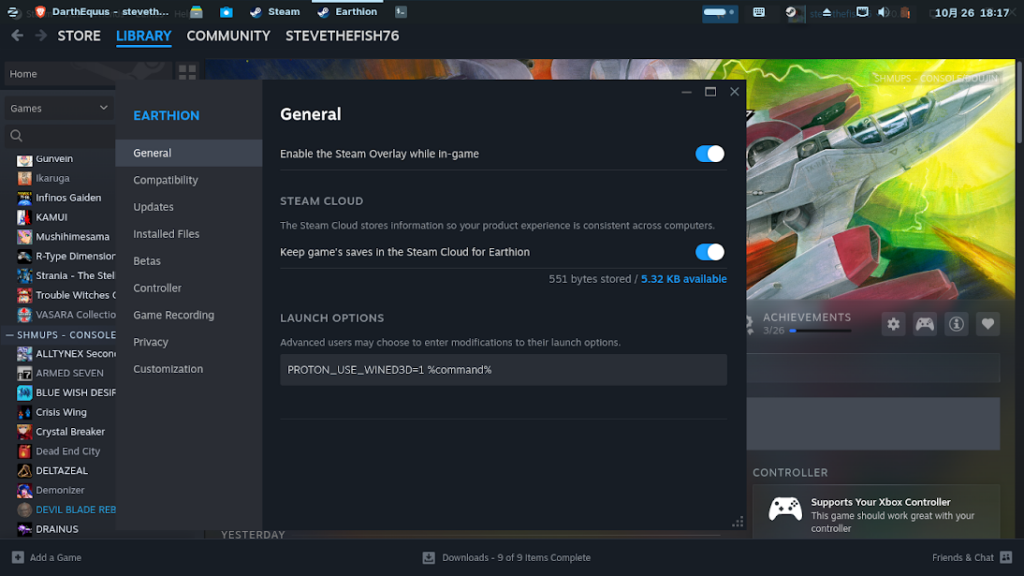
OK, interesting. Wine comes pre-installed? That’s nice. I still had to install protontricks to get Earthion to play, though. That said, I think the games might load faster than they did on Mint Mate.
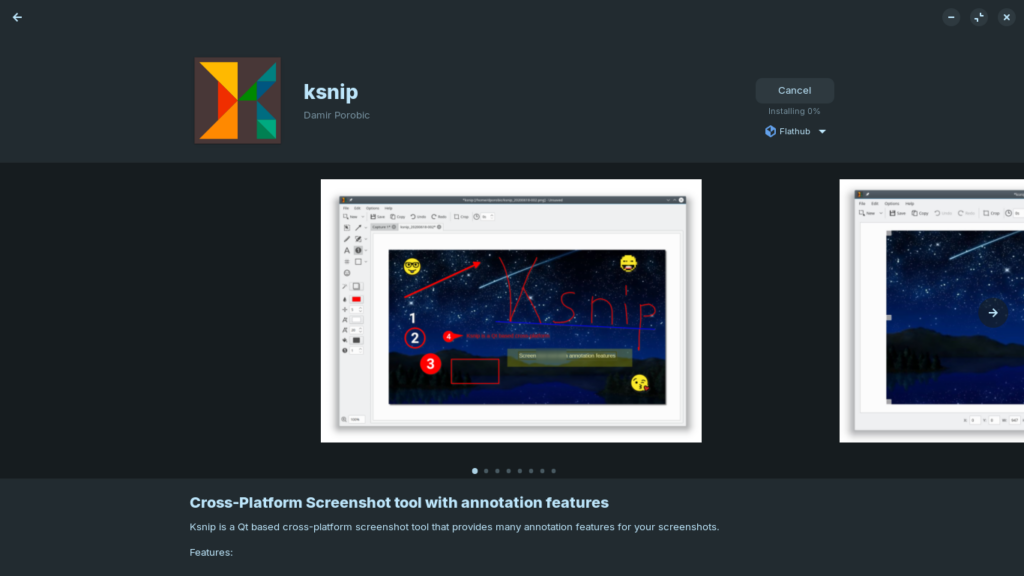
Here I’m installing K-Snip, which seems to function differently on Zorin than on Mint and I don’t know why. Zorin’s software library is a bit more simplified and I don’t know why. So far, I like Mint better. Both are Windows-y, but maybe Zorin is more Windows-ier.
Zorin comes with Brave as its default web browser. I know that Firefox is run by woke shitlibs who want me dead for disagreeing with them, but I just like Firefox’s customizability and its ability to add a search box rather than having to use the address bar for that. Is it that hard to just provide that?
So far, it appears that this laptop boots up faster with Zorin than Mint Mate, and Steam games seem to load more quickly too. I imagine Mint XFCE would be at least as fast, but for now I’ll continue to get used to Zorin.
EDIT October 29th: I’m on day 4 of my Zorin install and I can say that it boots much faster. It takes a shorter time to turn this old laptop on. The Zorin website says, “We’ve streamlined Zorin OS to work on computers as old as 15 years.”
The basic Zorin install allows you to switch your appearance between four options, like a Win10 appearance, a Win11 appearance, a GMOME3 appearance, and more of a Win7-style appearance. If you pay for Zorin Pro, there is an option for appearances resembling Chrome OS, Mint, MacOS, and others. I’ve switched it once, but what sucks is that I had to re-configure the keyboard input. Since I depend on Japanese text input, I needed to install Fcitx5 and Mozc to do so. This was a bit annoying, but I got it working again.
I implore anyone who sees this message to ditch the cycle of abuse and liberate yourself. Sticking with Windows is like a battered wife who refuses to leave her abusive husband. (Or a Star Wars fan at this point.) I made the switch over 5 1/2 years ago and I have not regretted it since. It’s easier than you think, and the learning curve is not steep like it used to be. If my computer-illiterate mother-in-law can comfortably use Linux Mint without a problem, so can you. You aren’t barraged by pop-ups and other ads, it’s fast and not bloated, no need to worry about viruses, no more need to hunt down software that may or may not be full of sneaky crap, it’s far more secure, and it is FREE.
If you’re still on Win10 but haven’t switched to bloated Win11 which will only spy on you and strip you of your dignity, back up all your data and give Linux Mint a shot. You can boot it up with an install DVD or USB stick and even run the OS from that alone. It really is that slick. See if it works with your hardware and Linux generally does not need drivers. And keep in mind that Bill Gates was a driving factor in the medical tyranny in recent years that destroyed so many people’s lives. Break free and embrace freedom.
Zorin OS also caters to Windows refugees and is said to be pretty good. I have yet to try it out. And Bazzite is perfect for those who love SteamOS on their Steam Deck. Linux is far more user friendly than it was 20 years ago. Educate yourself! There are so many videos these days about how to switch from Windows to Linux. I suggest staying away from Ubuntu, Pop!OS, and especially stuff like Arch.
I made the switch to Linux 5 1/2 years ago after Microsnot ended support for Windows 7. Of course, I was so nervous at first. But once I made the plunge, I’ve been happy ever since and I haven’t looked back. Delete Bill Gates’s authority over your life. It’s crazy that the moonbats who reject RFK Jr. because he is neither a scientist nor a doctor are the same ones who blindly follow whatever Bill Gates says, who is neither a scientist nor a doctor and is an authoritarian scumbag who constantly complains about how there are too many people in the world and have sterilized, maimed and killed countless people through his vaccine initiatives worldwide.
This is my video that YouTube banned for “medical misinformation” even though I was simply reporting on news events. Bill Gates is a horribly evil man and fortunately, Odysee allows freedom of speech.
Back in the ’80s and early ’90s, there was so much more diversity for home computing. If you wanted business productivity, you’d go with IBM. For publishing you’d go with Apple MacIntosh. For music it was an Atari ST. For multimedia, definitely Commodore Amiga. But we let this be whittled down to either Microsoft or ultra-trendy (and ultra-expensive) Apple. It’s time to ditch the Windows/Apple paradigm. My Mac fan Kevin got sick of Apple and he switched his Mac’s OS to Linux. You do not have to continue supporting Bill “I dunno how all that CP got on this computer… it must’ve been an employee” Gates and his relationship with Jeffrey Epstein. Ditch Adobe who just wants you to be a slave forever by renting their software instead of owning it. Break free! Linux is your freedom.